Starting the Robot Program
This document mainly introduces how to start the robot control program through the handheld controller. There are two main methods, detailed as follows:
Startup Mode 1
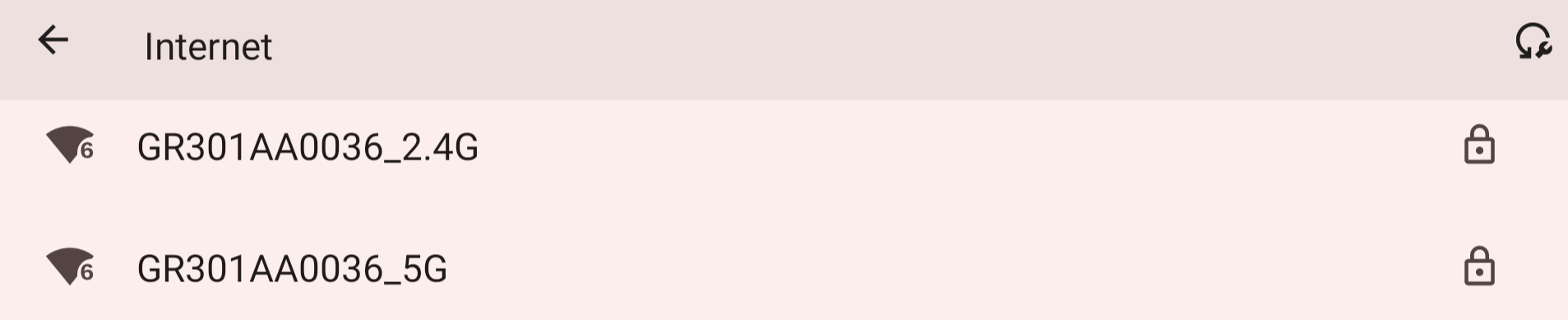
- Connect to the robot's Wi-Fi: Turn on the handheld controller, navigate to "Settings" → "Network & Internet," then search for and connect to the Wi-Fi network provided by the robot. The Wi-Fi name follows the format such as GR301AA0036_5G or GR301AA0036_2.4G, and the Wi-Fi password is "fftai,2015".
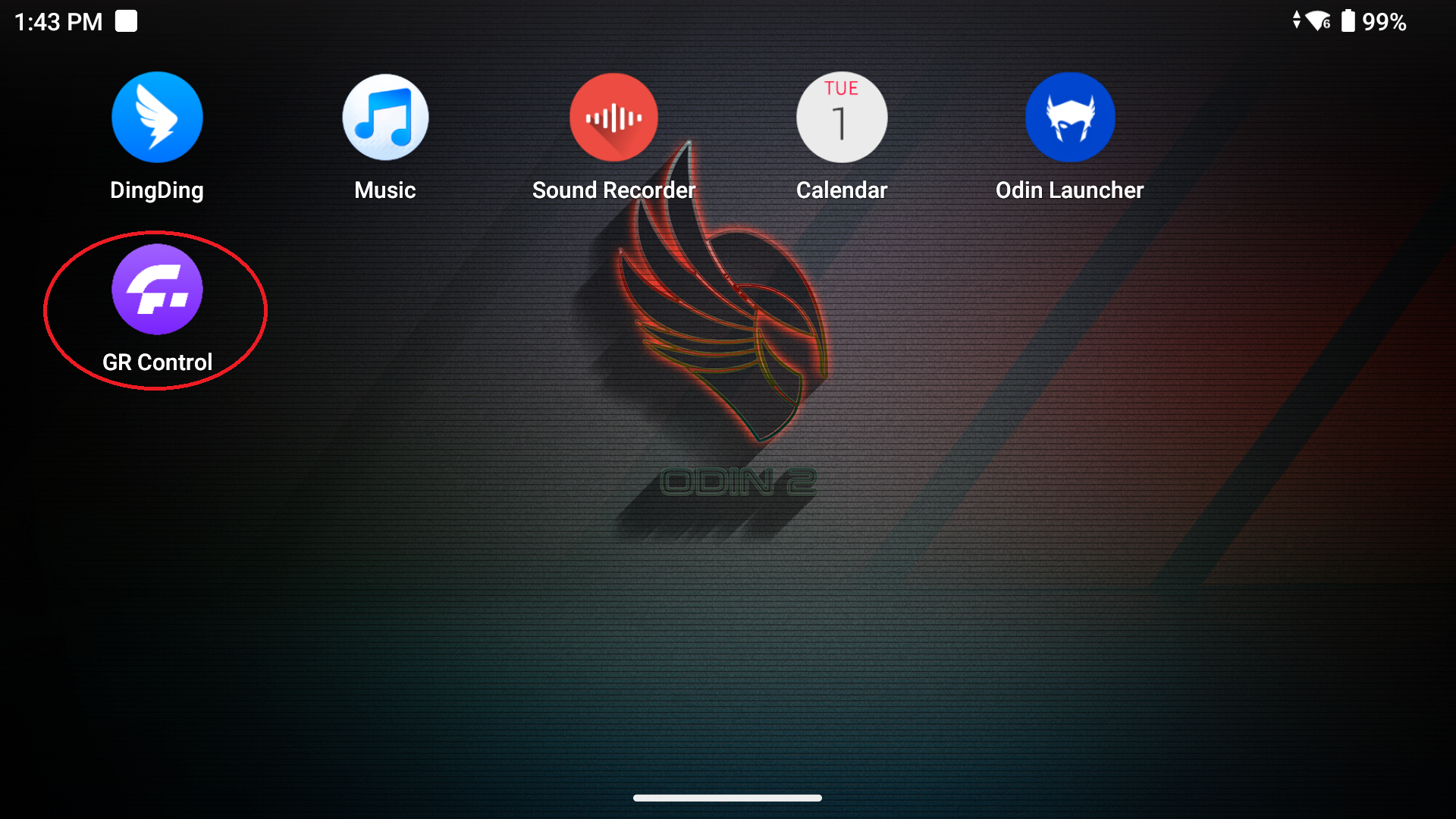
- Locate and open the “GR Control” app on the handheld controller.
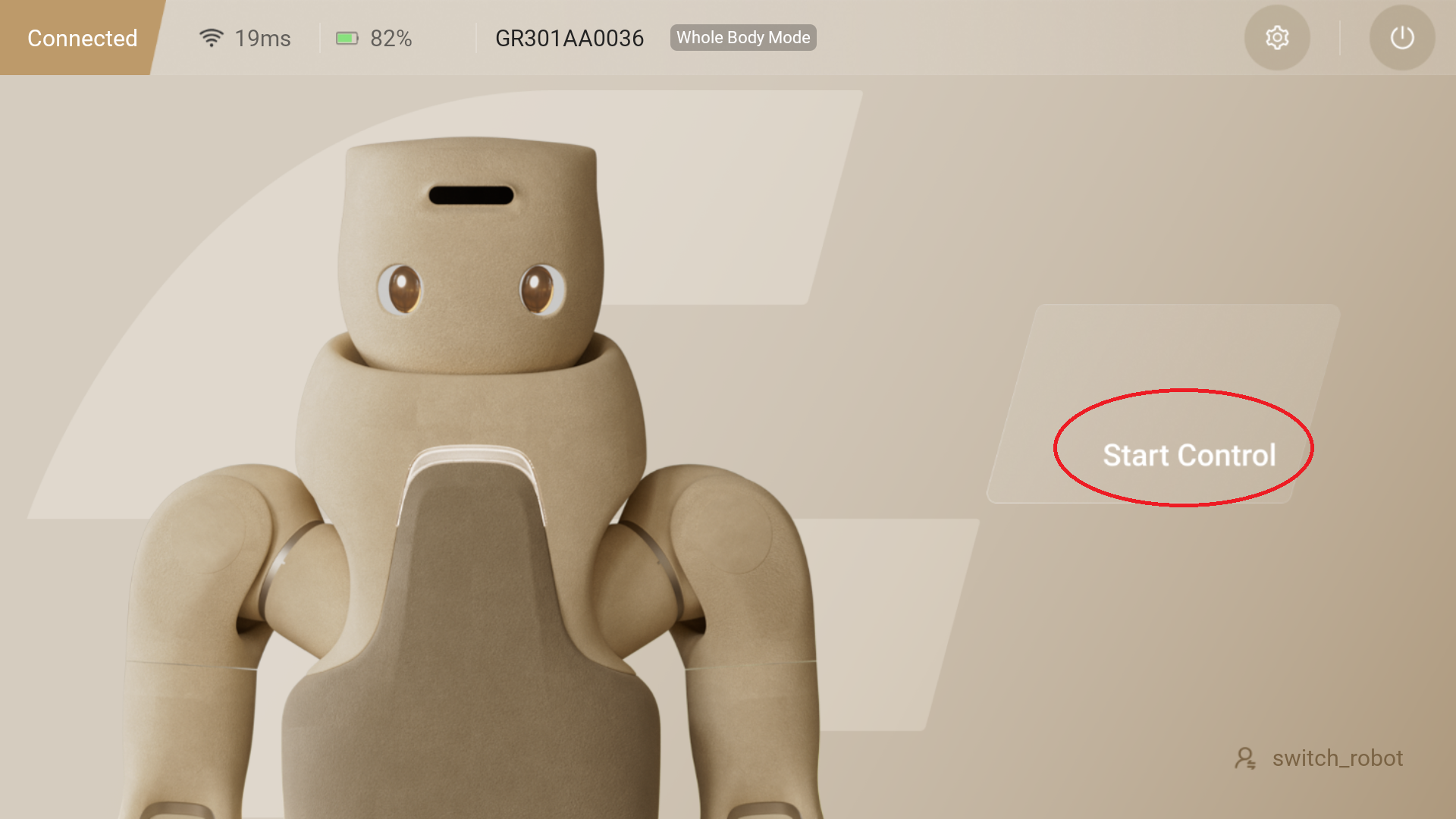
- After opening the “GR Control” app, it will automatically connect to the robot and directly enter the robot's home page. On the home page, tap the “Start Control” button to start the robot control program.
**⚠️ Note: ** Before starting the robot control program, ensure that the robot's emergency stop function has been deactivated and the actuators are powered on.
Startup Mode 2
- Locate and open the “GR Control” app on the handheld controller.
- When the "GR Control" app is opened, the following interface will be displayed. Tap the "+ card" to manually add a robot card.
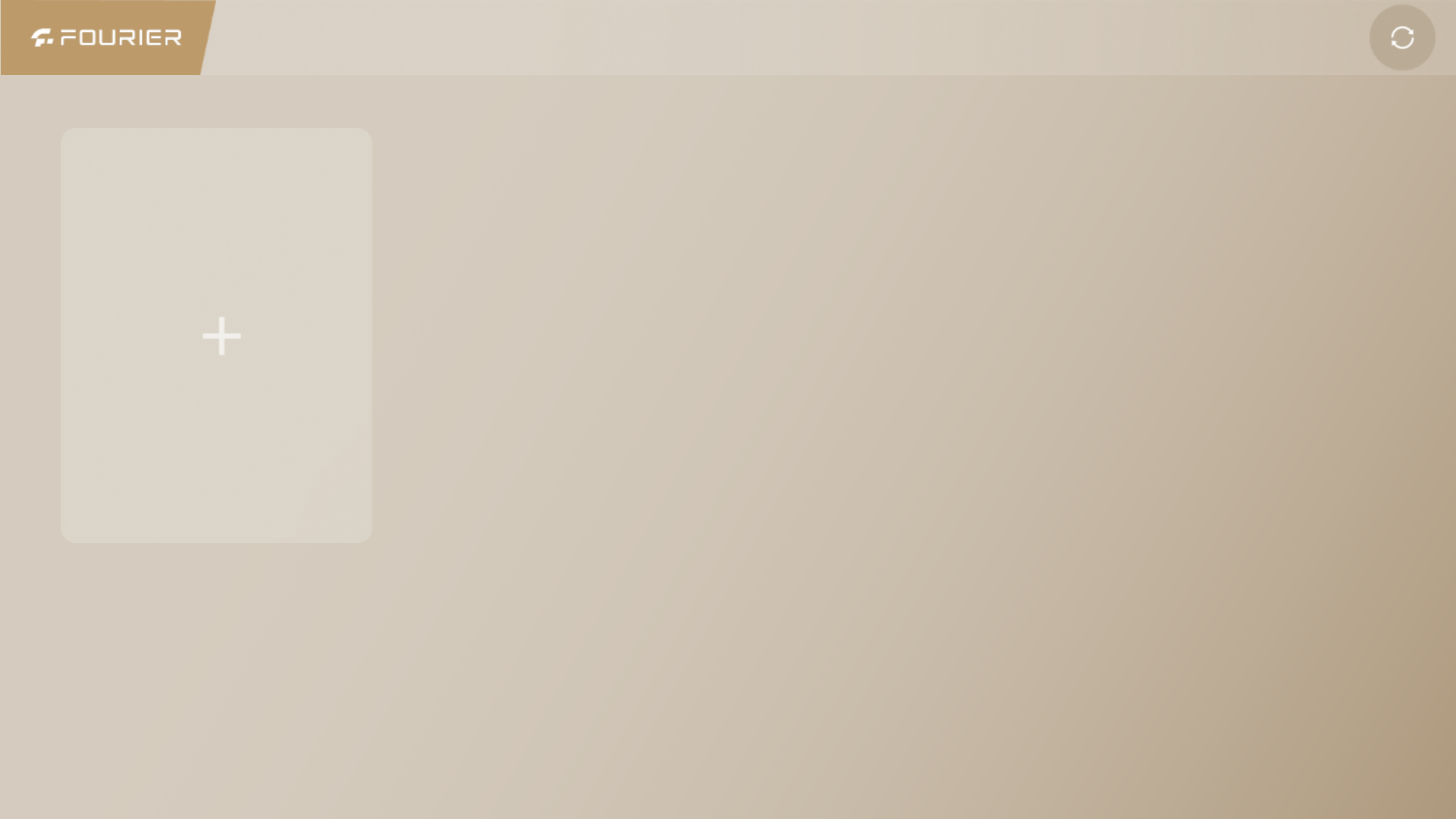
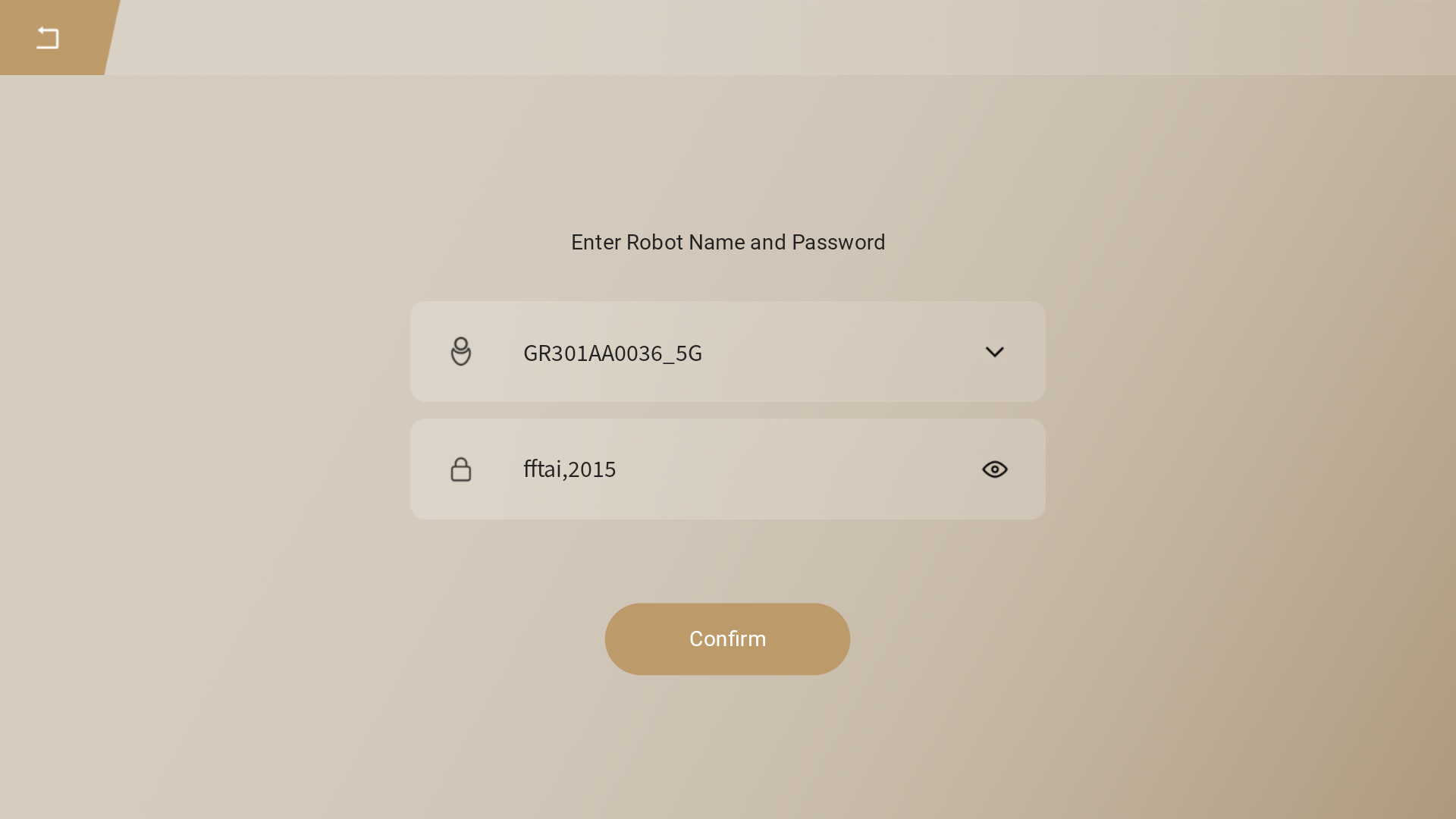
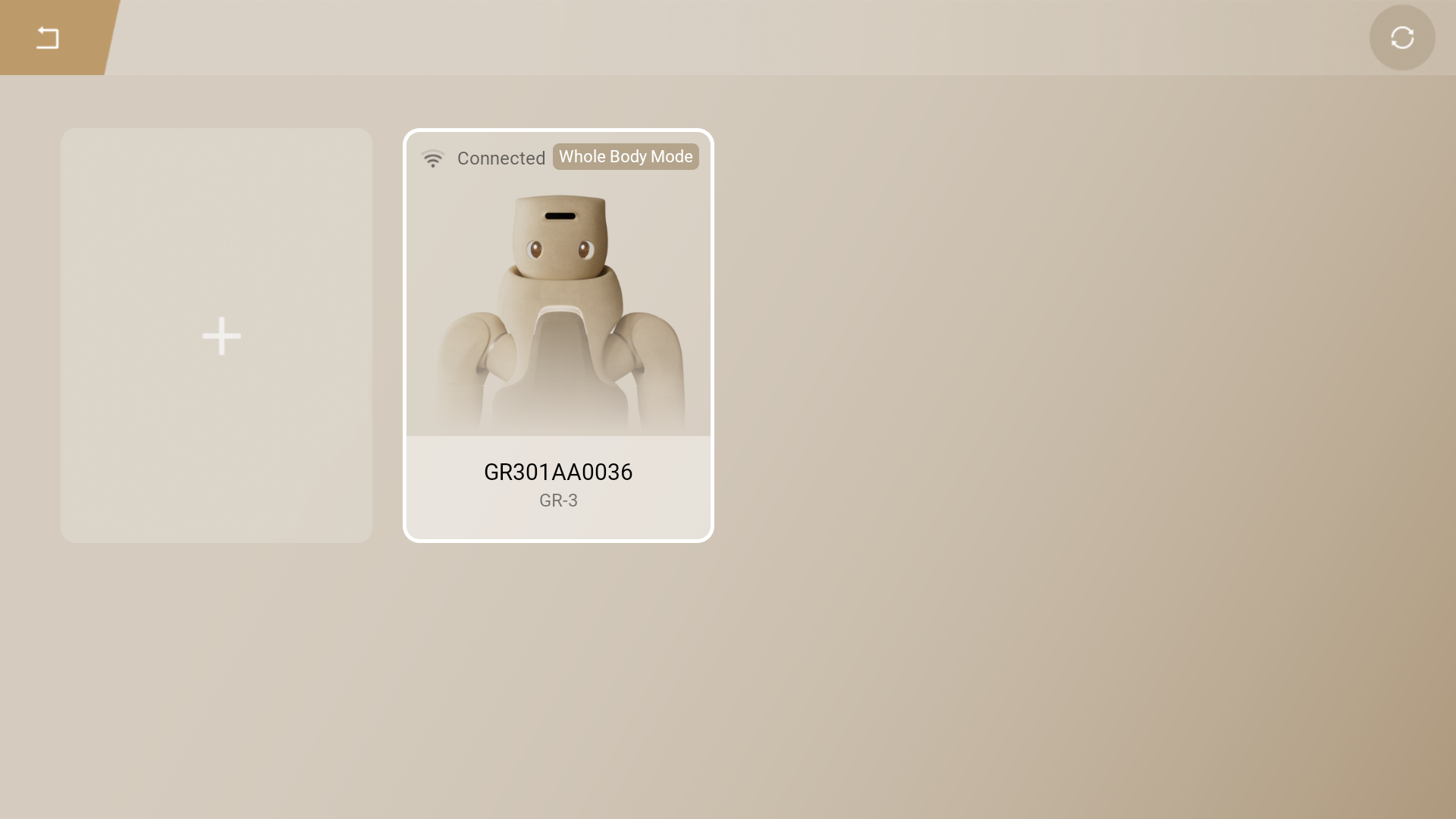
- Then enter the robot's name and password to add the robot card. The robot's name follows the format such as GR301AA0036_5G, and the password is "fftai,2015". After the robot card is successfully added, the card will be highlighted, indicating that the robot is currently in the "Connected" state. Tap "Refresh" to update the robot's connection status. (Once the robot is successfully connected, the handheld controller will automatically connect to the robot's Wi-Fi.)
- After the robot successfully connects, tap on the highlighted card of the connected robot to start the robot control program.
⚠️ Note: Before starting the robot control program, ensure that the robot's emergency stop function has been deactivated and the actuators are powered on.