Quick Start (Simulation)
This article will introduce the quick process of controlling the robot in simulation using fourier aurora sdk.
Environment Dependencies
The development and implementation of simulation can be performed on an external PC. Our development environment is provided in the form of a docker image, so Docker needs to be installed. If Docker is not installed, please refer to the official Docker installation guide: Get Docker.
Installing Aurora Service
First, you need to install the Aurora service on the PC. We provide a docker image for easy installation. For Aurora installation, please refer to Installation Tutorial
Downloading Fourier Aurora SDK
Run the following command:
git clone https://github.com/FFTAI/fourier_aurora_sdk.git
Connecting the Joystick
Connect your joystick to the computer. Aurora uses the Linux built-in driver joystick.h to read user joystick data. To verify if the device is properly loaded into the system, run the following command in the terminal:
ls /dev/input
You should see a device file named js0. Aurora reads joystick data through this device file.
For more joystick usage instructions, please refer to Joystick Usage Tutorial
Starting the Container
You can start the container by running the following command in the terminal under the repository's root directory. If necessary, modify the docker image in docker_run.bash. You may need to use the (sudo) docker images command to check the available docker images on your system.
(sudo) bash docker_run.bash
Note: Please ensure you have the correct docker image. For details, please refer to Installation Guide.
Starting Mujoco Simulation
For simulation usage, you need to start another terminal and enter the just-started container using the following command:
(sudo) docker exec -it fourier_aurora_server bash
Then, you need to start the simulation environment by running the following command:
python3 sim/start_simulate_root.py
After running, operation prompts will appear in the terminal. Select the robot number and terrain number. For the robot number, input "0" (FOURIER_N1). The terrain can be specified; here, use FLAT as an example, input "0". After input, the following UI interface will pop up:
Starting Aurora
Before running Aurora, you need to determine the startup configuration items. The configuration file is located at config/config.yaml
Config:
  RobotName: gr2 # gr1 / gr2 / gr3
  RunType: 0 # 0 run simulator / 1 control real robot
  UseJoyStick: true # use as default
  DomainID: 123 # use as default
- RobotName: The robot model, here should be
fouriern1 - RunType: Running mode,
0means running in the simulator,1means controlling a real robot. Here should be0 - UseJoyStick: Whether to use joystick control,
truemeans enabled,falsemeans disabled. Since joystick control demonstration will be performed next, choosetrue - DomainID: DDS communication domain ID, used to distinguish different communication domains in the same network environment. The default value is
123. For multi-robot collaboration, it can be modified to different values to avoid conflicts
After confirming the configuration file, run the following command to start Aurora:
AuroraCore --config <path_to_your_config_file>
If the program runs successfully, the following message will appear in the terminal:
[info] FSM state run, enter "Default" mode by default
Controlling the Robot
The Aurora SDK provides two ways to control the robot: joystick control and client control. This article will respectively introduce how to achieve robot standing and walking in the simulation environment through these two control methods.
1. Using Joystick to Control the Robot
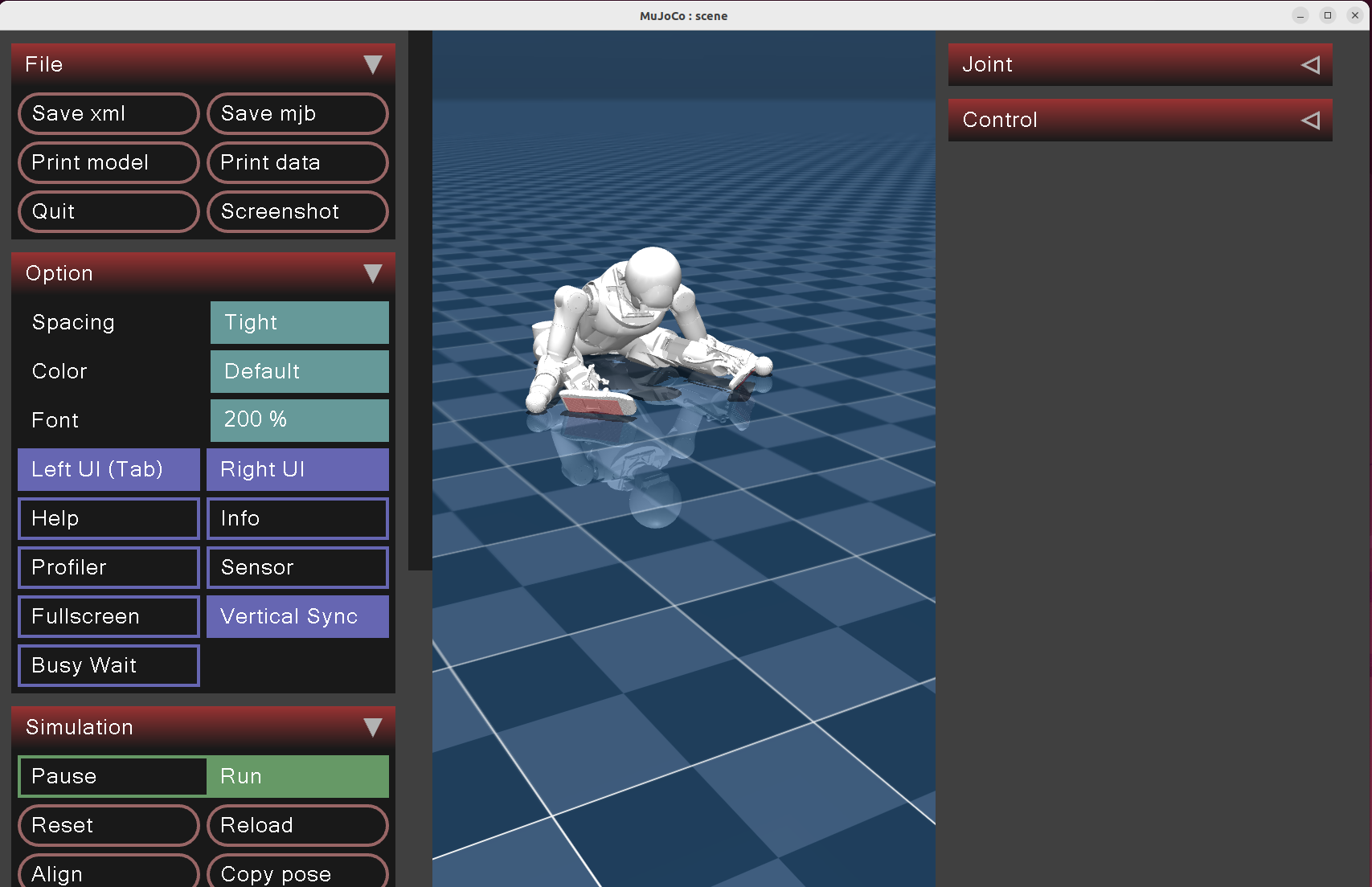
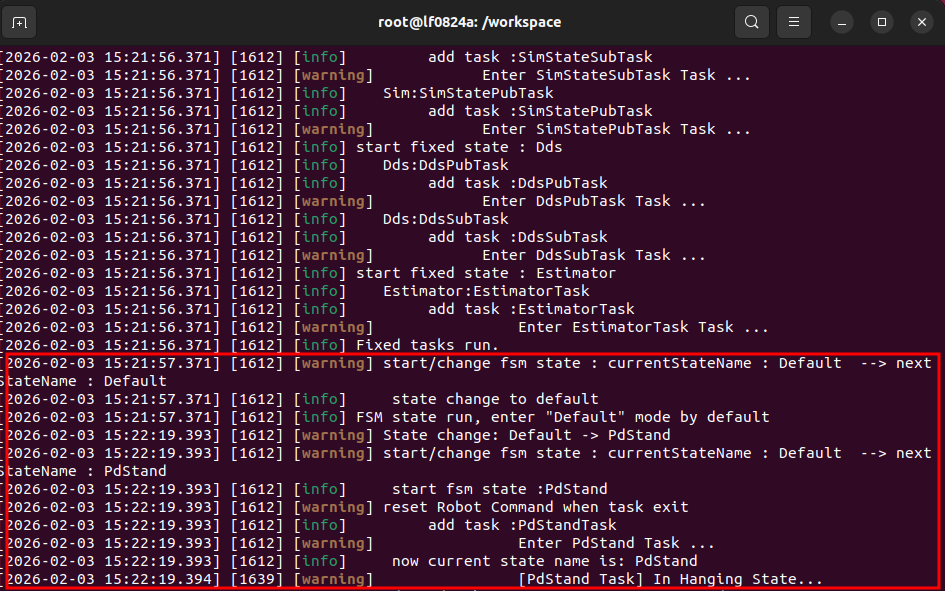
After starting Aurora and the simulation environment, press the joystick buttons LB + B. The terminal shows switching from the "default" state to the "Pdstand" state. In simulation, since the robot is not in a stable standing-on-ground state when entering the "Pdstand" state, the robot is in Hanging State. The robot lies on the ground and begins adjusting joint postures to prepare for standing.

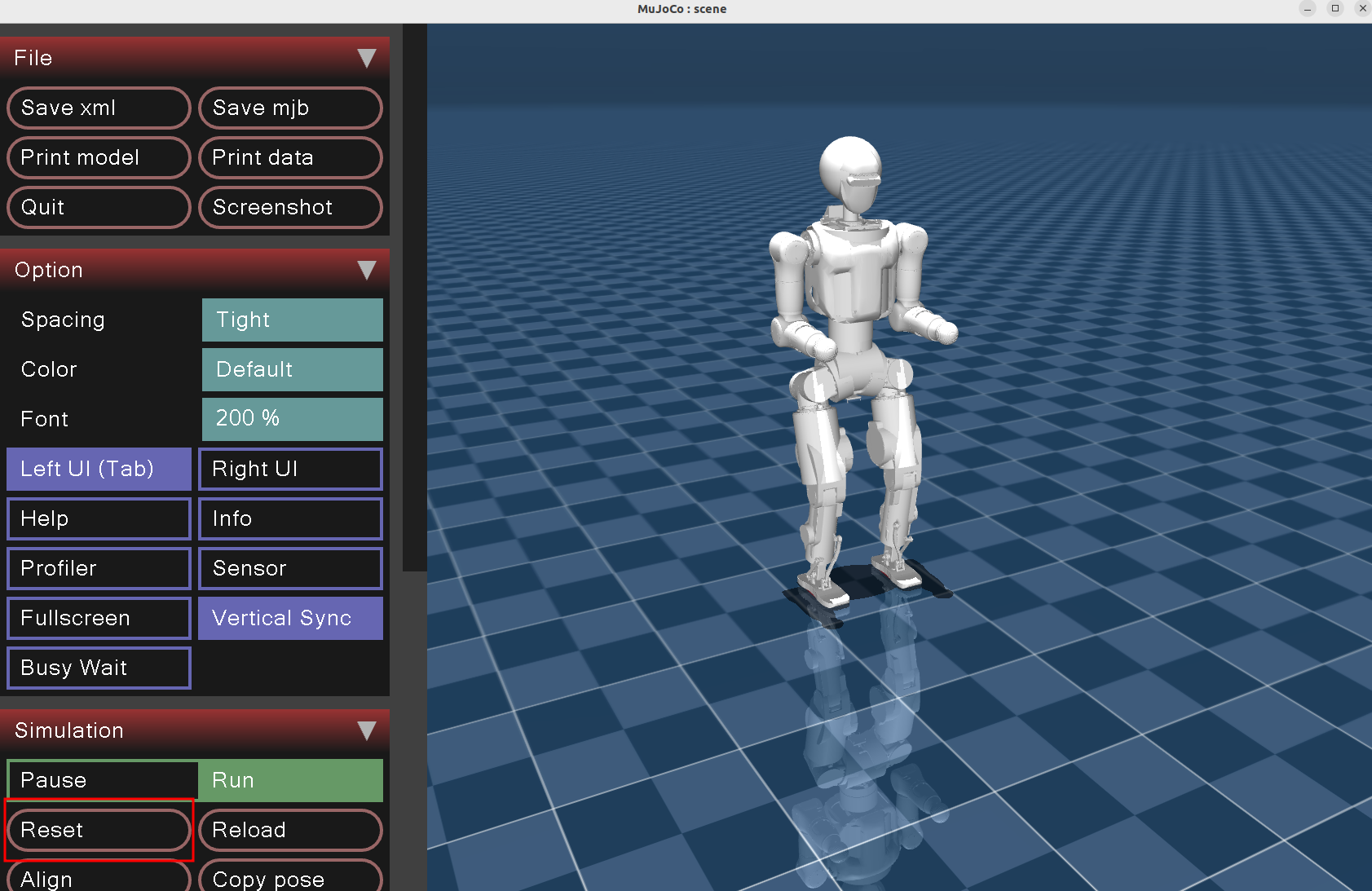
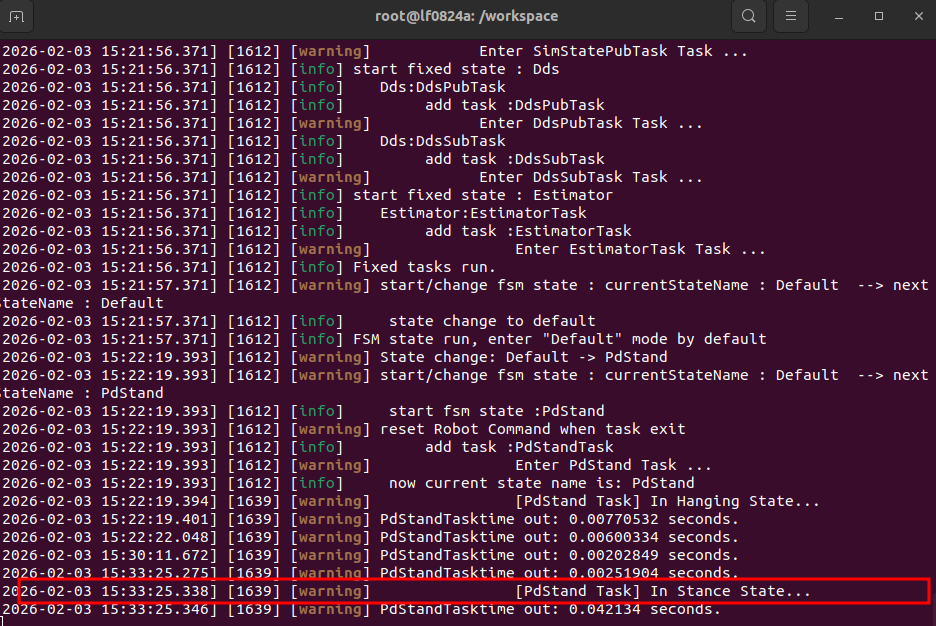
After clicking Reset in the Mujoco UI interface, the robot stands on the ground, and the terminal shows the robot is in Stance State.
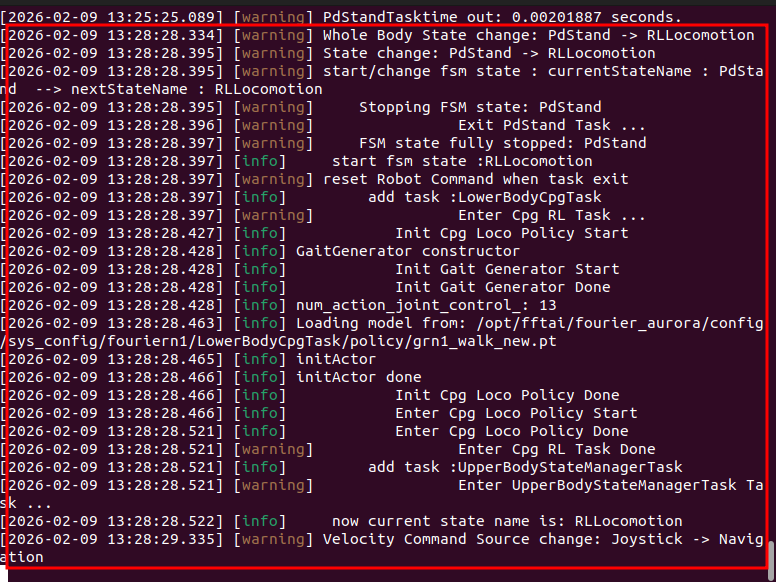
Press the joystick buttons RB + A. The terminal shows switching from the Pdstand state to the RLLocomotion state. The terminal displays as follows:
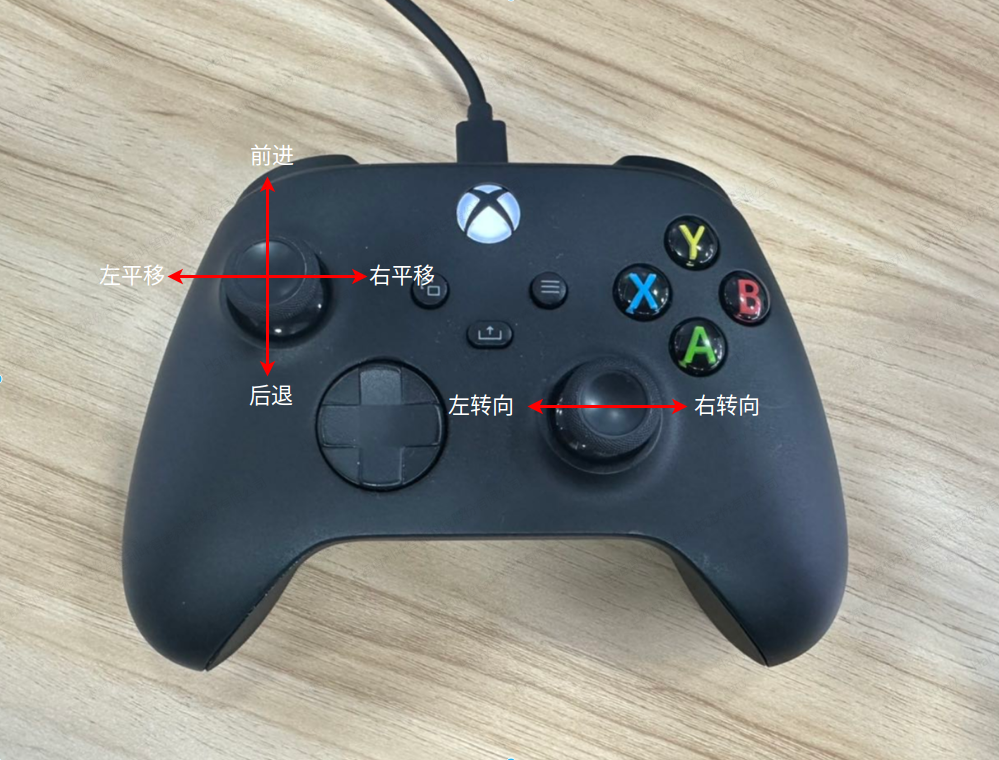
At this point, we can control the robot's speed via the left and right joysticks. Push the left joystick vertical axis forward, and the robot begins walking forward.

Now, you have successfully used the joystick to control the robot to stand and walk in the simulation environment. This tutorial only demonstrates part of the functionality of the standing and walking states. For more state functionalities, please refer to Developer Guide
2. Using the Client to Control the Robot
You can also use the Python client provided by the SDK to control the robot. For client usage instructions, please refer to Client Usage Introduction
Installing the Client
Client usage can be performed inside the image or in the local Python environment.
Start another terminal, enter the just-started image or local Python environment, and run the following command to install the Aurora client:
sudo apt install python3-pip
pip install fourier-aurora-client
⚠️ Note:
If using a Python environment, the Python version needs to be greater than or equal to 3.9.
Running demo_quick_start
Enter the image or virtual environment with fourier-aurora-client installed, go to the fourier aurora sdk file directory, and run the following command:
python3 python/example/fouriern1/demo_quick_start.py
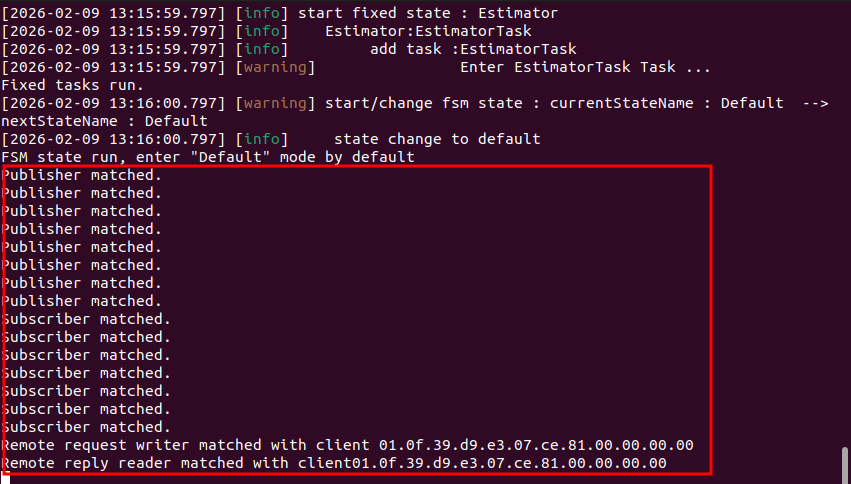
After running, the terminal will display the following communication matching prompts, as shown below:
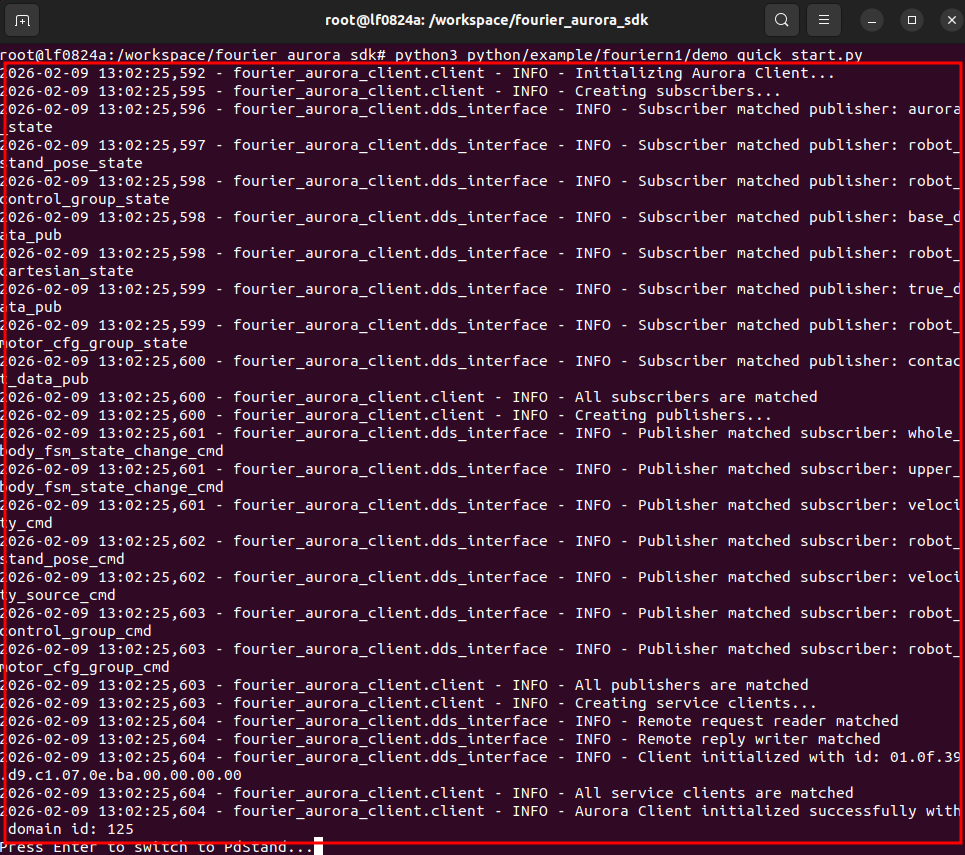
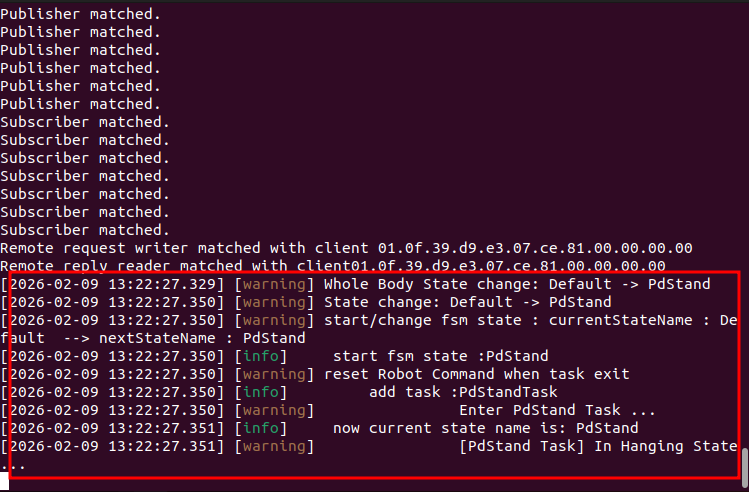
According to the client startup terminal prompt "Press Enter to switch to PdStand...", press the Enter key. The Aurora startup terminal shows switching from the "default" state to the "Pdstand" state. In simulation, since the robot is not in a stable standing-on-ground state when entering the "Pdstand" state, the robot is in Hanging State. The robot lies on the ground and begins adjusting joint postures to prepare for standing.
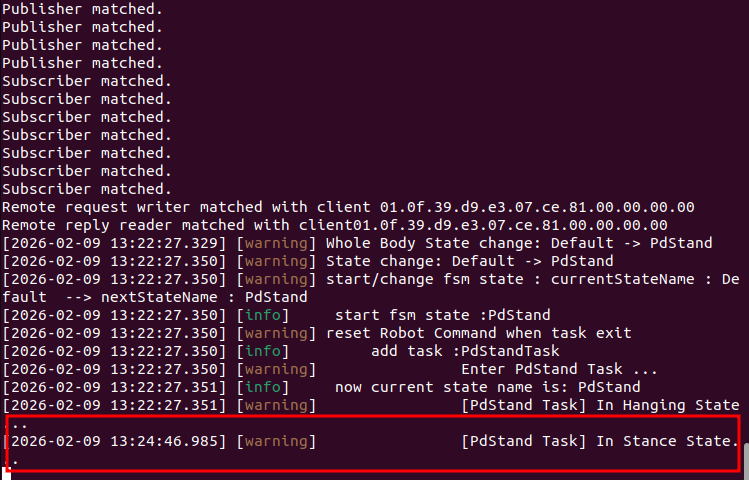
After clicking Reset in the Mujoco UI interface, the robot stands on the ground, and the terminal shows the robot is in Stance State.
According to the client startup terminal prompt "Press Enter to enter walk task...", press the Enter key. The Aurora terminal shows switching from the "Pdstand" state to the "RLLocomotion" state.
According to the client startup terminal prompt "Press Enter to walk...", press the Enter key to call the set_velocity function, sending a forward speed command of 0.2 m/s to the Aurora service. The robot begins walking.

Now, you have successfully used the client to control the robot to stand and walk in the simulation environment. This tutorial only demonstrates part of the functionality of the standing and walking states. For more state functionalities, please refer to Developer Guide