Quick Start
Robot Power-On and Gamepad Control
Gamepad Components
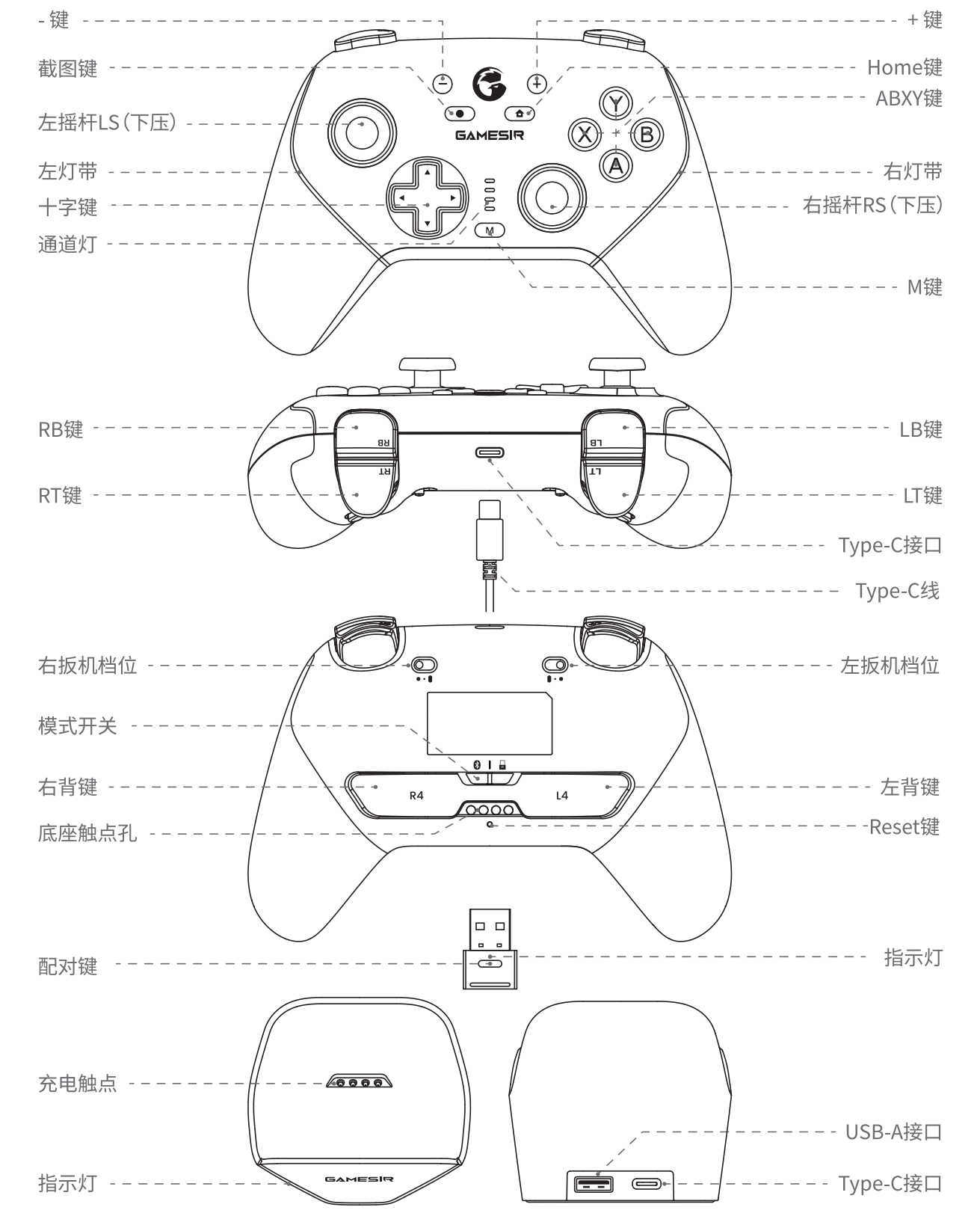
The robot comes with gamepad control by default. After connecting the gamepad, first enter Preparation Mode (LB+A) to confirm all joint actuators are functioning normally, then switch to Control Mode (RB+A) before using the other buttons to teleoperate the robot.
| Control | Button | Command | Gamepad |
|---|---|---|---|
| Gamepad connection | Home button | 1. After the robot powers on, insert the gamepad receiver into the robot's USB port; 2. Slide the mode switch on the back of the gamepad to the receiver position  ; ;3. Long-press the Home button until channel LEDs 2 and 4 blink, then release; 4. Channel LEDs 2 and 4 stay lit when connected. | 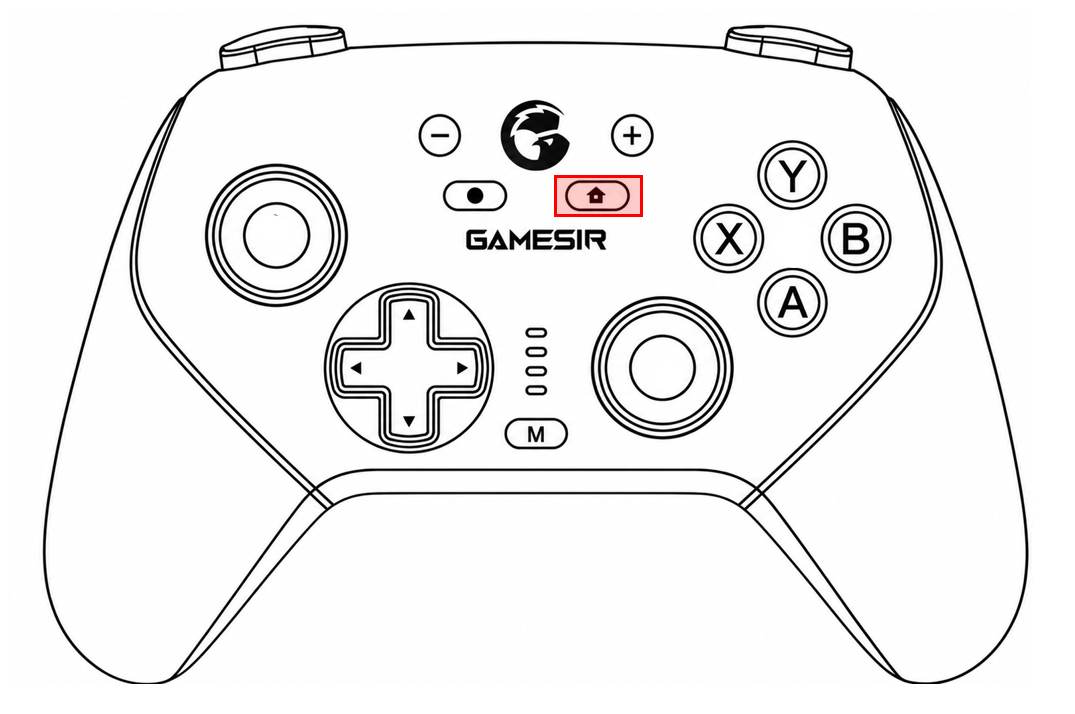 |
| Chassis movement | Left stick | Push forward: move forward Push back: move backward Push left: strafe left Push right: strafe right The further the stick is pushed, the faster the movement | 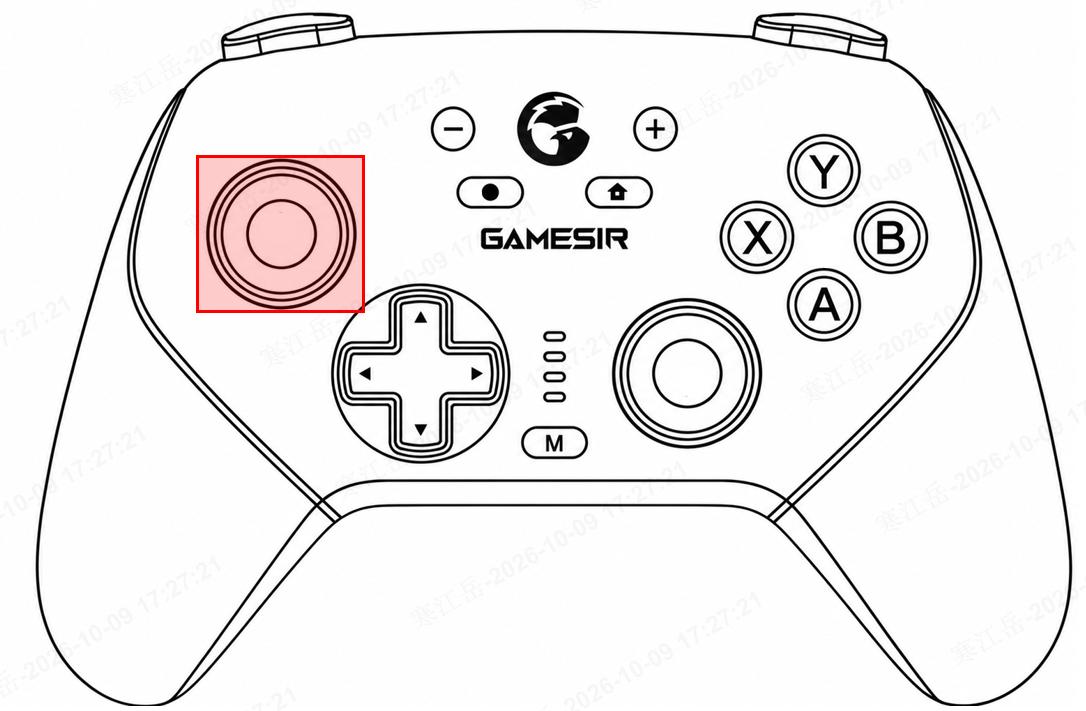 |
| Right stick | Push forward: undefined Push back: undefined Push left: turn left Push right: turn right The further the stick is pushed, the faster the turn | 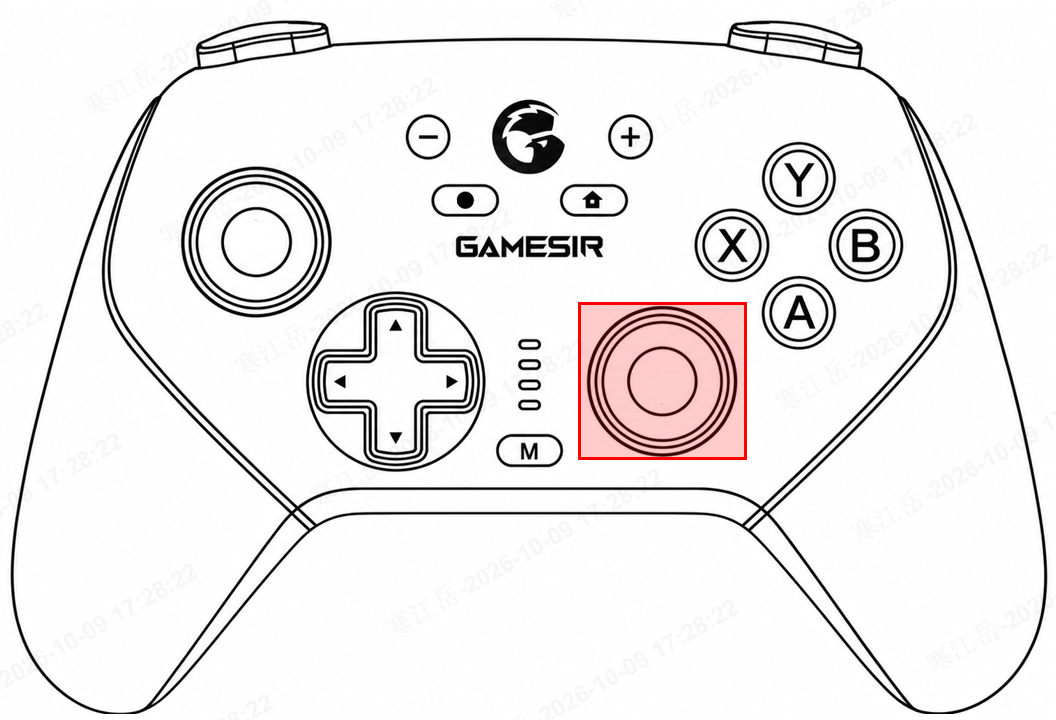 | |
| Upper body movement | D-pad | Up: raise torso Down: lower torso Left: turn waist left Right: turn waist right | 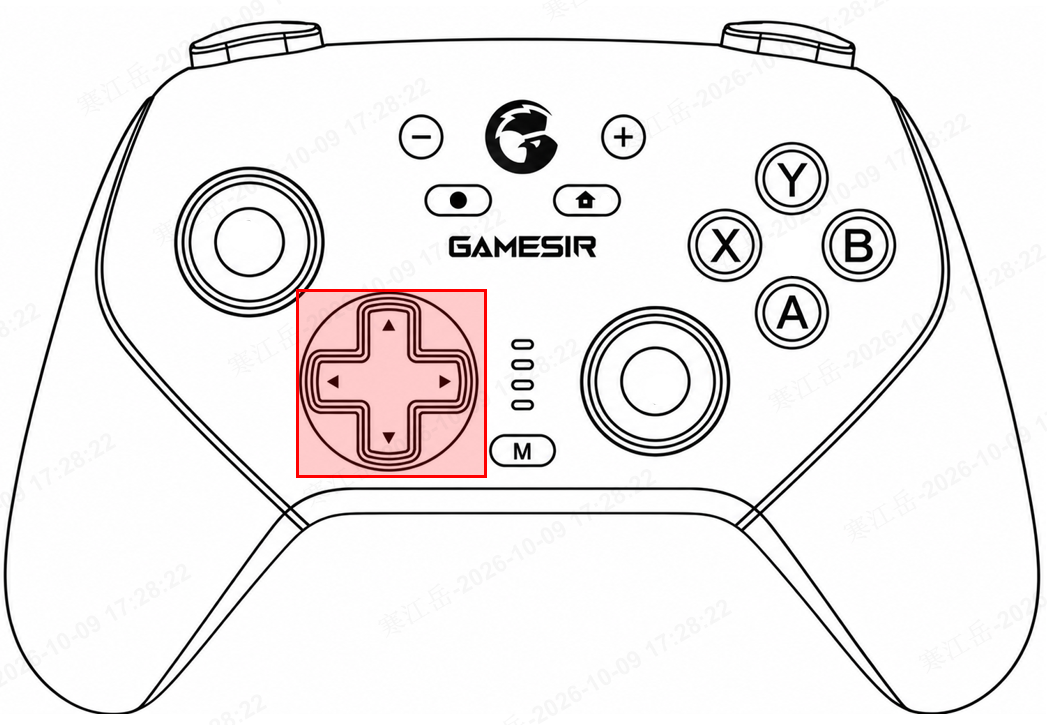 |
| Buttons: A, B, X, Y | X: tilt waist left B: tilt waist right Y: tilt waist forward A: tilt waist backward | 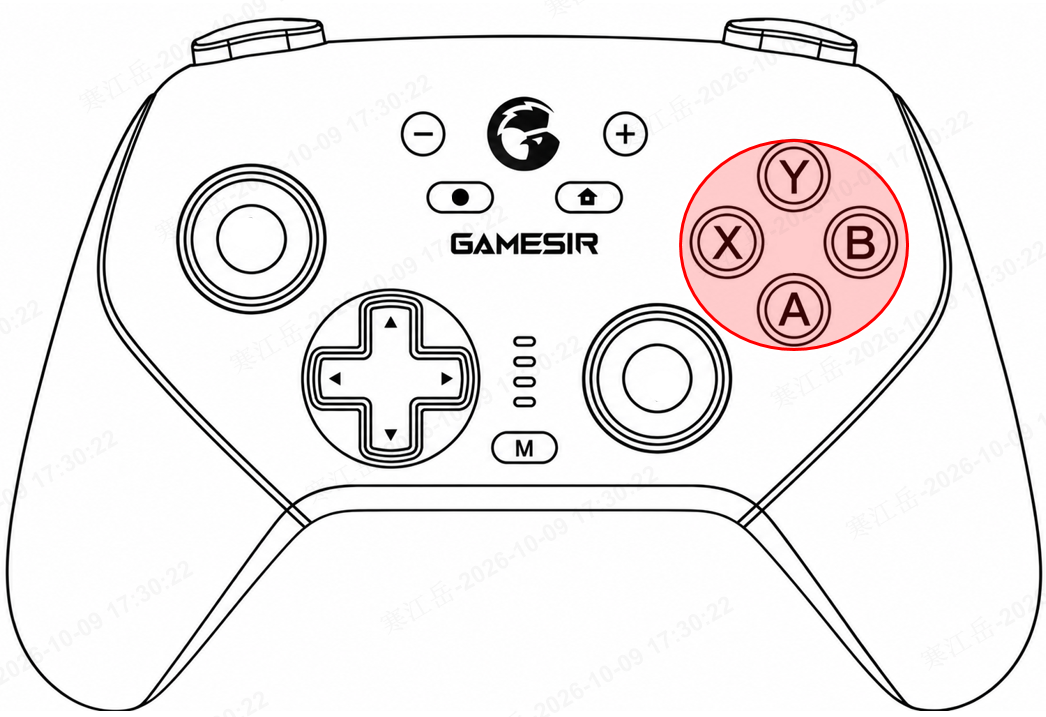 |
Gripper Installation
Installation Method
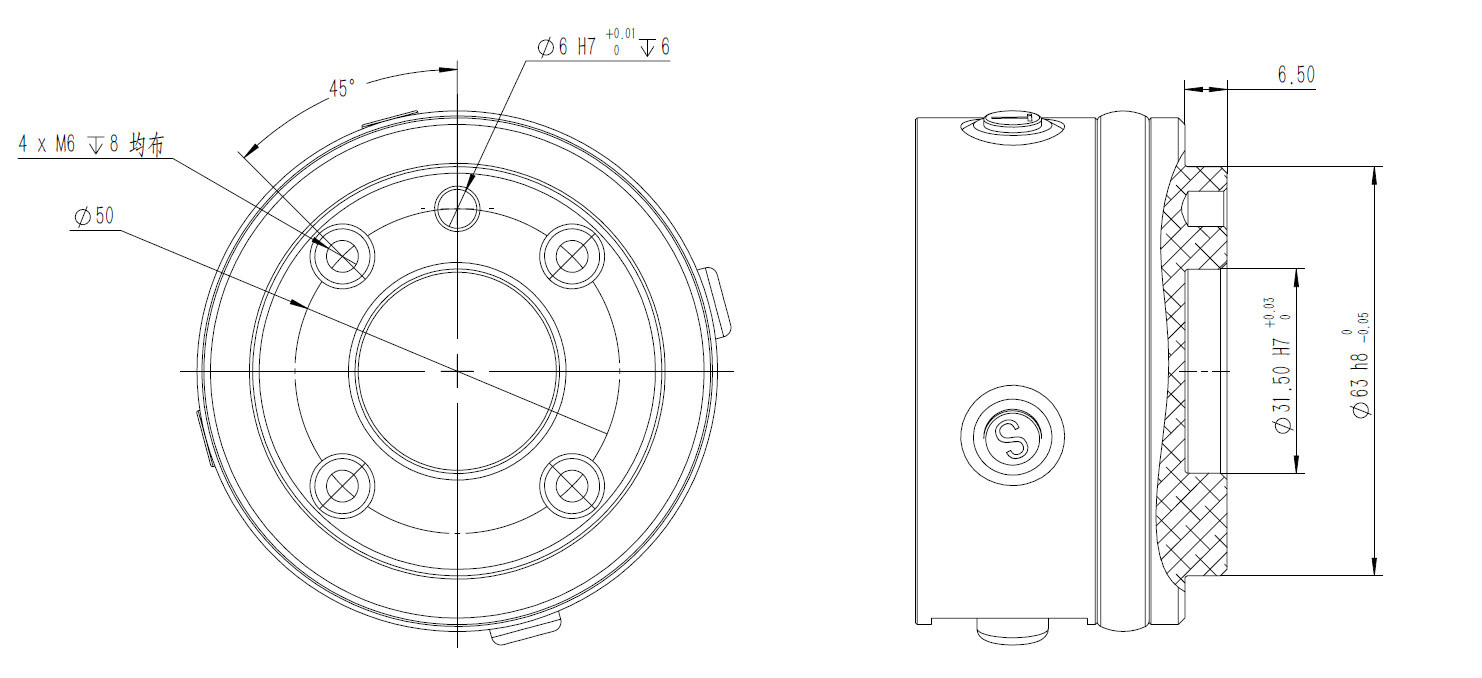
Gripper installation requires a standard flange (conforming to GB/T 14468.1-50-4-M6 / ISO 9409-1-50-4-M6). The specification parameters are shown below:
Algorithm Configuration
Since the left and right grippers are identical in shape and cannot be distinguished visually, you must manually choose a different USB port for each gripper when installing them on the arm ends, and configure the software side (left hand / right hand / both hands) to match the algorithm.