Quick Start (Real Robot)
This guide walks you through controlling a real GR-3 robot using the Fourier Aurora SDK.
Login to the System
Local Login
Connect a monitor, keyboard, and mouse to the robot's chest computer. After boot, the user credentials are:
Username: robot name in lowercase (e.g., gr301aa0015)
Default password: fftai2015
Remote Login (SSH)
You can SSH into the robot's chest computer remotely.
Wired connection: Connect your PC to the robot via Ethernet and configure the PC's IPv4 settings:
- IP address: 192.168.137.X (
Xshould avoid conflicts with motor IPs) - Subnet mask: 255.255.255.0
- Gateway: 192.168.137.1
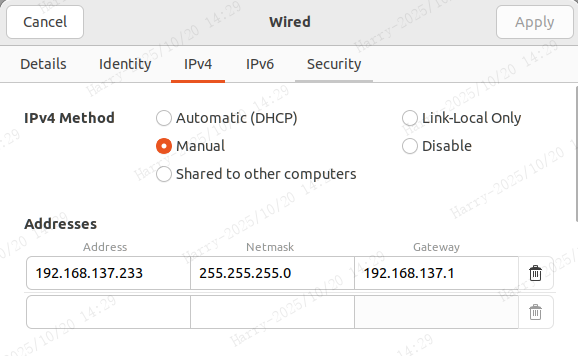
Run the SSH command using the robot's serial number. For example, for robot GR301AA0015:
ssh gr301aa0015@192.168.137.220
Default password: fftai2015
Wireless connection: Connect your PC to the robot's Wi-Fi first. The SSID follows the format GR301AA0015_5G or GR301AA0015_2.4G, with password fftai,2015. Once connected, SSH in the same way as the wired method above.
Control the Robot
1. Joystick Control
Joystick control is not yet available in the current release. We appreciate your patience — this feature is on our roadmap and will be opened in a future update. Stay tuned!
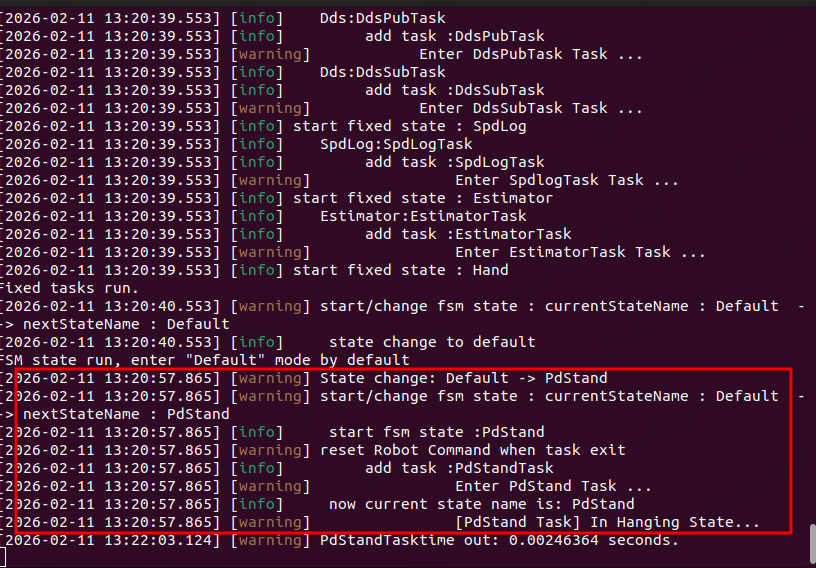
After Aurora starts, press LB + B on the gamepad. If you use the preinit script, the terminal will show a transition from Default to PdStand — the robot bends its legs and enters a standing posture while suspended.
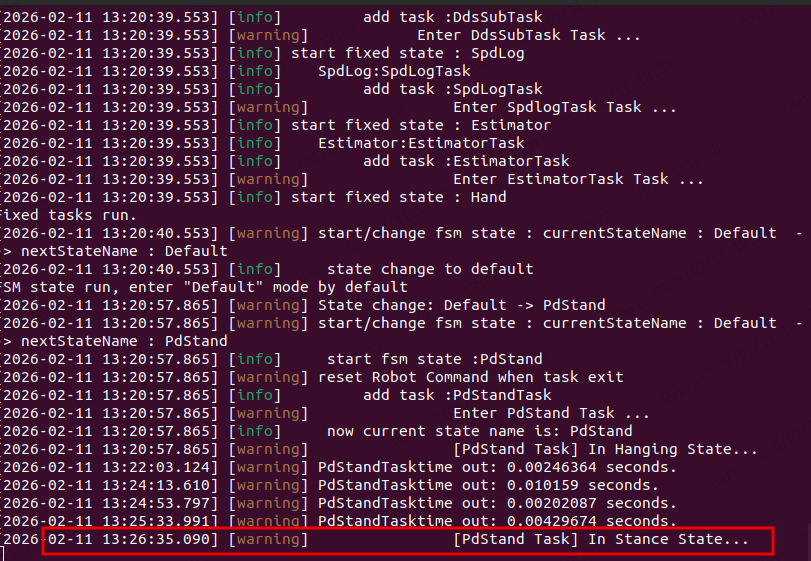
Lower the robot from the lift and place it upright on the ground. The robot begins standing.
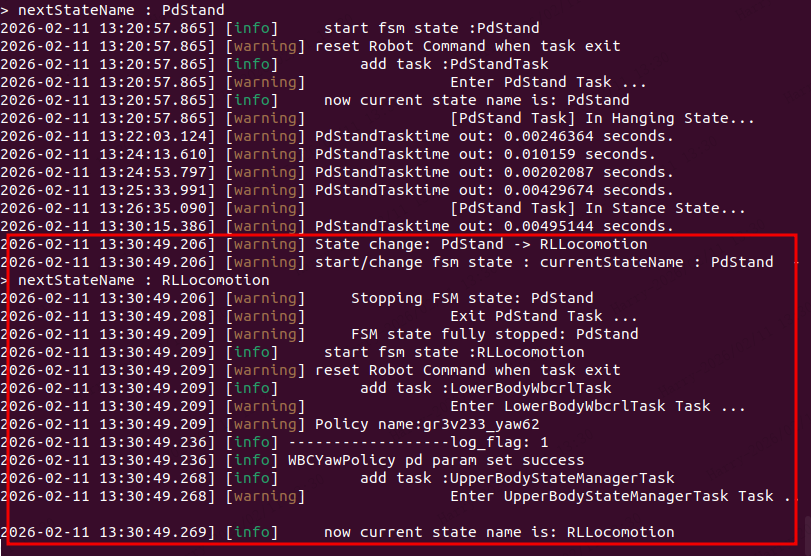
Press RB + A. The terminal transitions from PdStand to RLLocomotion:
Use the left joystick (vertical axis) to control forward/backward speed, and the right joystick for turning. Push the left stick forward — the robot walks.
This tutorial covers basic standing and walking. For more states and features, see the GR Controller.
2. Python Client Control
You can also control the robot programmatically using the Aurora Python client.
Install the Client
Open a new terminal (inside the Docker container or your local Python environment) and run:
sudo apt install python3-pip
pip install --force-reinstall /opt/fftai/fourier_aurora_client/*.whl
Python version must be >= 3.9 if using a local environment.
If you are running the Python client from a virtual environment or from a remote host, several environment variables need to be set:
export FASTDDS_BUILTIN_TRANSPORTS=UDPv4
export FOURIERDDS_ROS_COMPATIBLE=true
export FOURIERDDS_USE_DISCOVERY_SERVER=false
Or set them inside a Python script:
import os
from fourier_aurora_client import AuroraClient

os.environ["FASTDDS_BUILTIN_TRANSPORTS"] = "UDPv4"
os.environ["FOURIERDDS_ROS_COMPATIBLE"] = "true"
os.environ["FOURIERDDS_USE_DISCOVERY_SERVER"] = "false"

client = AuroraClient.get_instance(domain_id=123)  # Aurora uses domain_id=123 by default
# rest of the code ...
Run the Quick Start Demo
Run the following example in your virtual environment:
import os
import time
from fourier_aurora_client import AuroraClient

if __name__ == "__main__":

    # Set up environment variables
    os.environ["FASTDDS_BUILTIN_TRANSPORTS"] = "UDPv4"
    os.environ["FOURIERDDS_ROS_COMPATIBLE"] = "true"
    os.environ["FOURIERDDS_USE_DISCOVERY_SERVER"] = "false"

    # Initialize client
    client = AuroraClient.get_instance(domain_id=123, robot_name="gr3")
    time.sleep(1)

    # Use set_fsm_state() to switch FSM state. See the controller docs for the state mapping table.
    cmd = input("Press Enter to switch to PdStand...")
    client.set_fsm_state(2)
    time.sleep(1.0)

    # Use set_velocity_source() to set velocity command. For client velocity control, velocity source should be set to 2.
    cmd = input("Press Enter to enter walk task...")
    client.set_fsm_state(3)
    time.sleep(1.0)
    client.set_velocity_source(2)

    # Use set_vel() to set velocity command.
    cmd = input("Press Enter to walk...")
    client.set_velocity(0.2, 0.0, 0.0, 3.0)
    time.sleep(1.0)

    client.close()
    print("client usage demo completed successfully.")
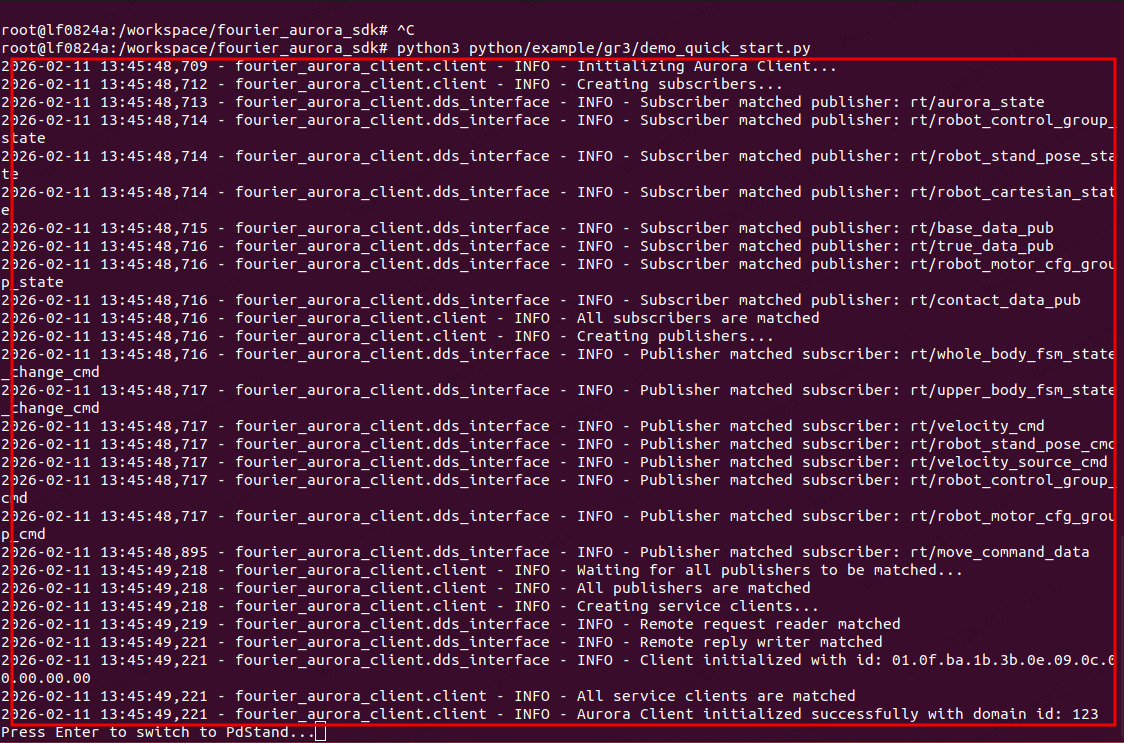
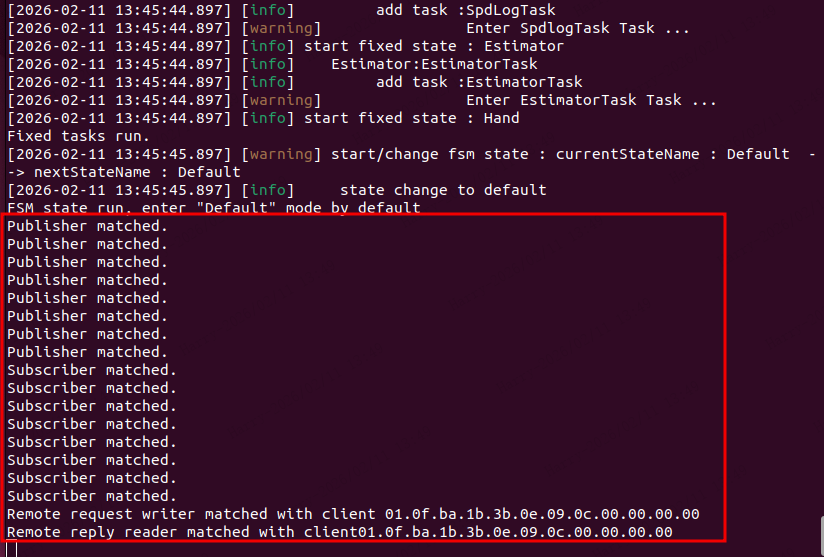
The terminal will show matched communication topics (visible when using the preinit script):
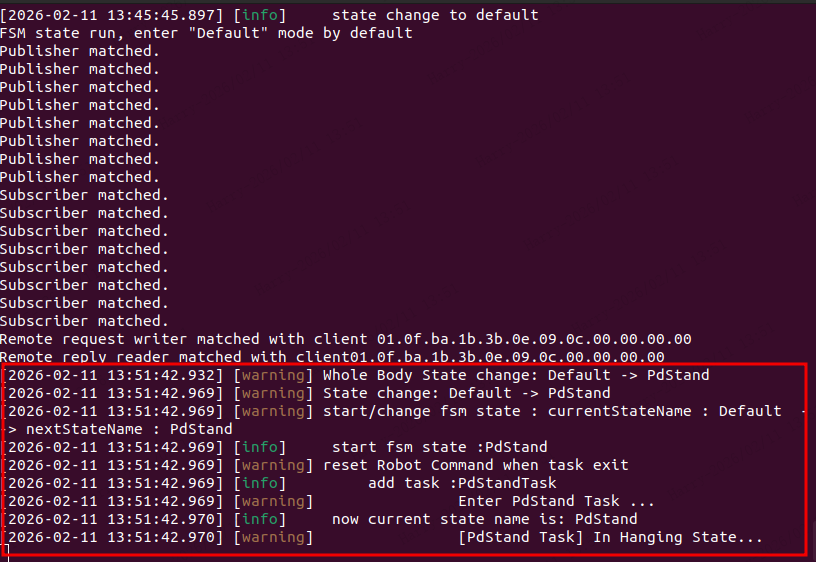
When prompted "Press Enter to switch to PdStand...", press Enter. The Aurora terminal transitions from Default to PdStand:
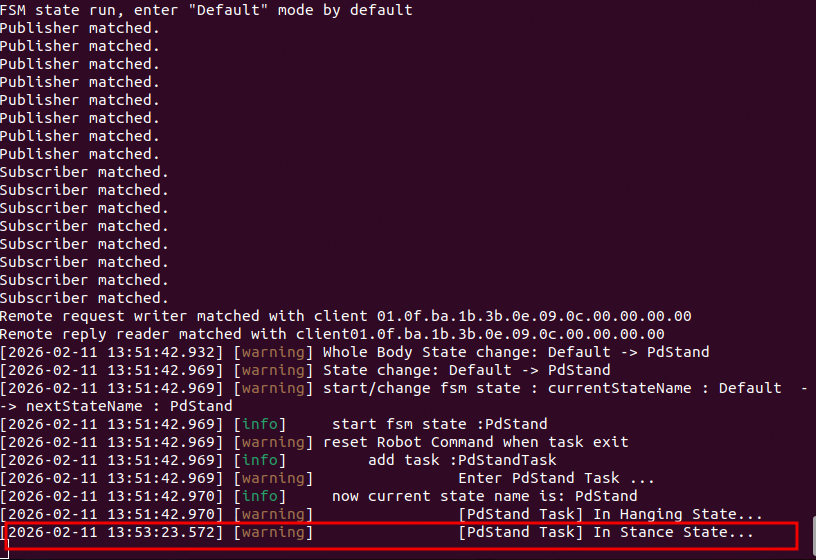
Place the robot on the ground — it begins standing:
When prompted "Press Enter to enter walk task...", press Enter. The terminal transitions to RLLocomotion:
When prompted "Press Enter to walk...", press Enter. The client sends a forward velocity command of 0.2 m/s via set_velocity, and the robot starts walking.