Troubleshooting
HMS Local is a localized health monitoring and log management tool for robot systems, assisting with system maintenance, fault diagnosis, and performance evaluation.
🚧 The HMS application UI is currently in Chinese only. An English version is under development.
HMS Local Installation and Deployment
HMS Local comes pre-installed and deployed on every robot at the factory. You can access the tool directly by entering the following URL in the robot's onboard browser: http://localhost:3000.
Note: HMS Local is under continuous iteration. This guide may not fully reflect all product versions. We reserve the right to update or adjust the tool's features and documentation without prior notice.
HMS Local Features and Operations
1. Dashboard
1.1 Real-Time Robot Data Status
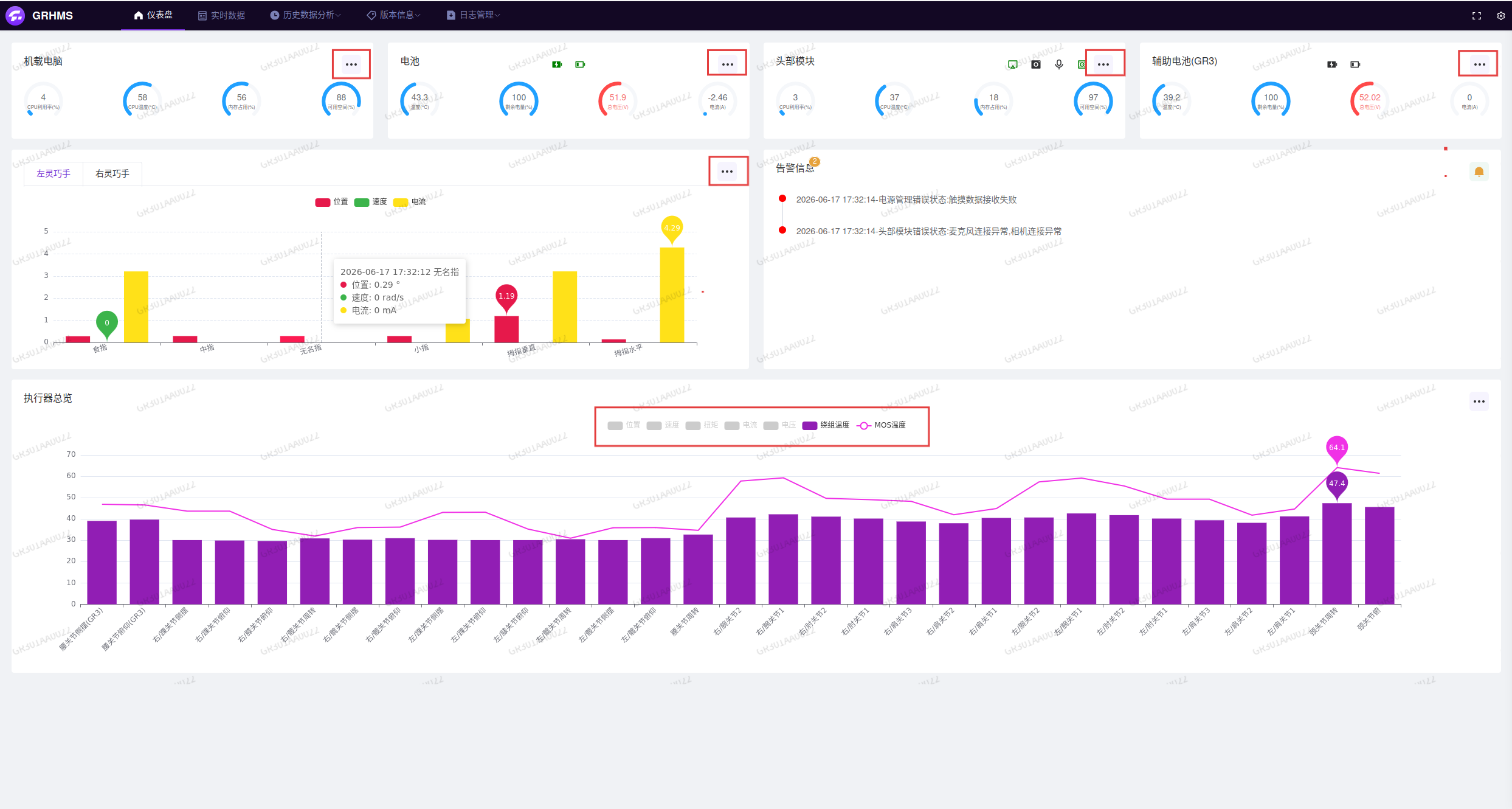
The Dashboard interface displays real-time robot data status charts, including graphical representations of onboard computer, battery, head module, dexterous hands, and actuator module data. Click the three-dot "More" button in the upper-right corner of the onboard computer, battery, head module, and dexterous hand modules to navigate directly to their corresponding Historical Data Analysis page. Under the Actuator Overview section, "Winding Temperature" and "MOS Temperature" data are displayed by default; you may optionally choose to display "Position", "Velocity", "Torque", "Current", and "Voltage" data.
1.2 Alert Information
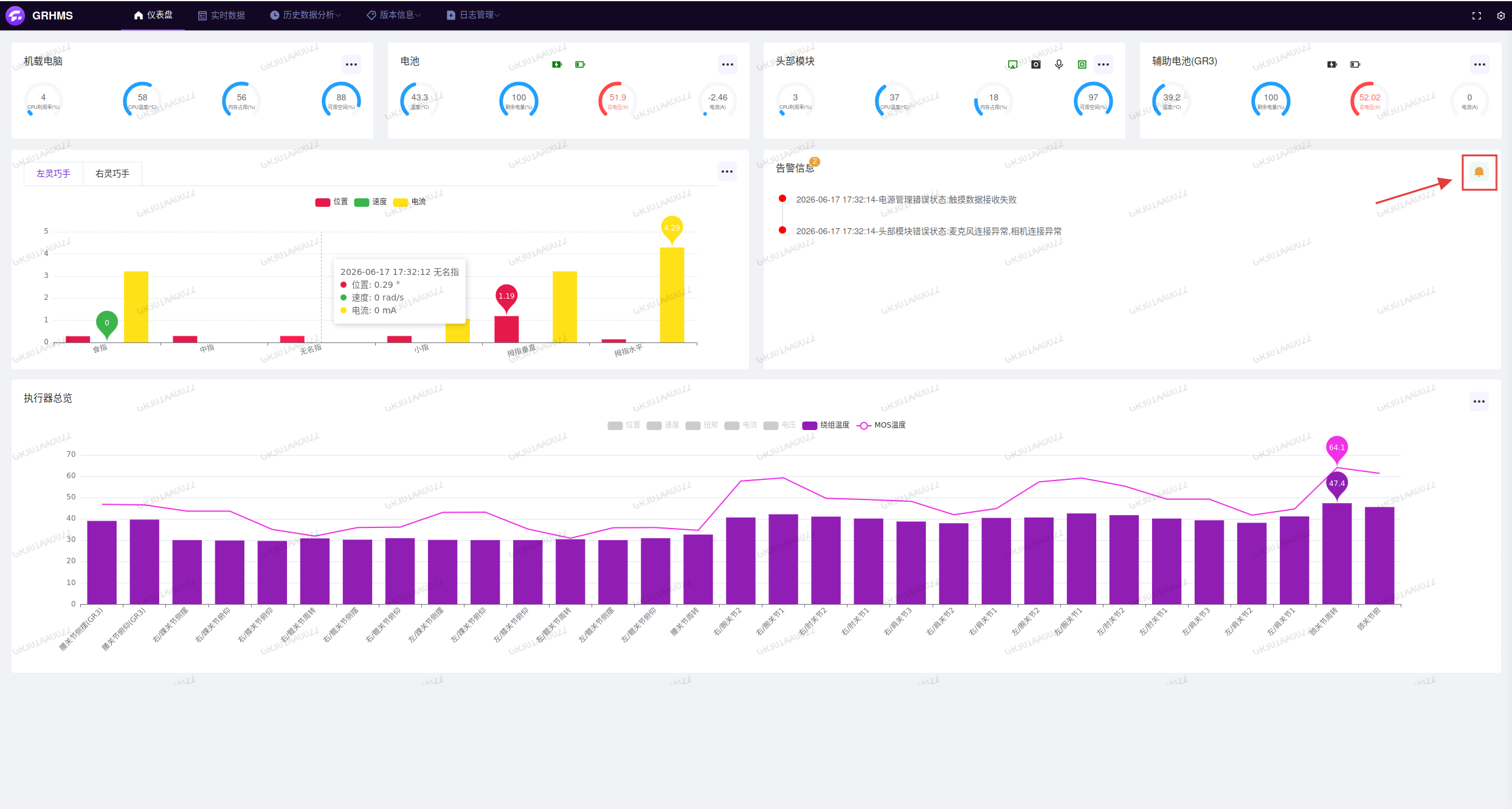
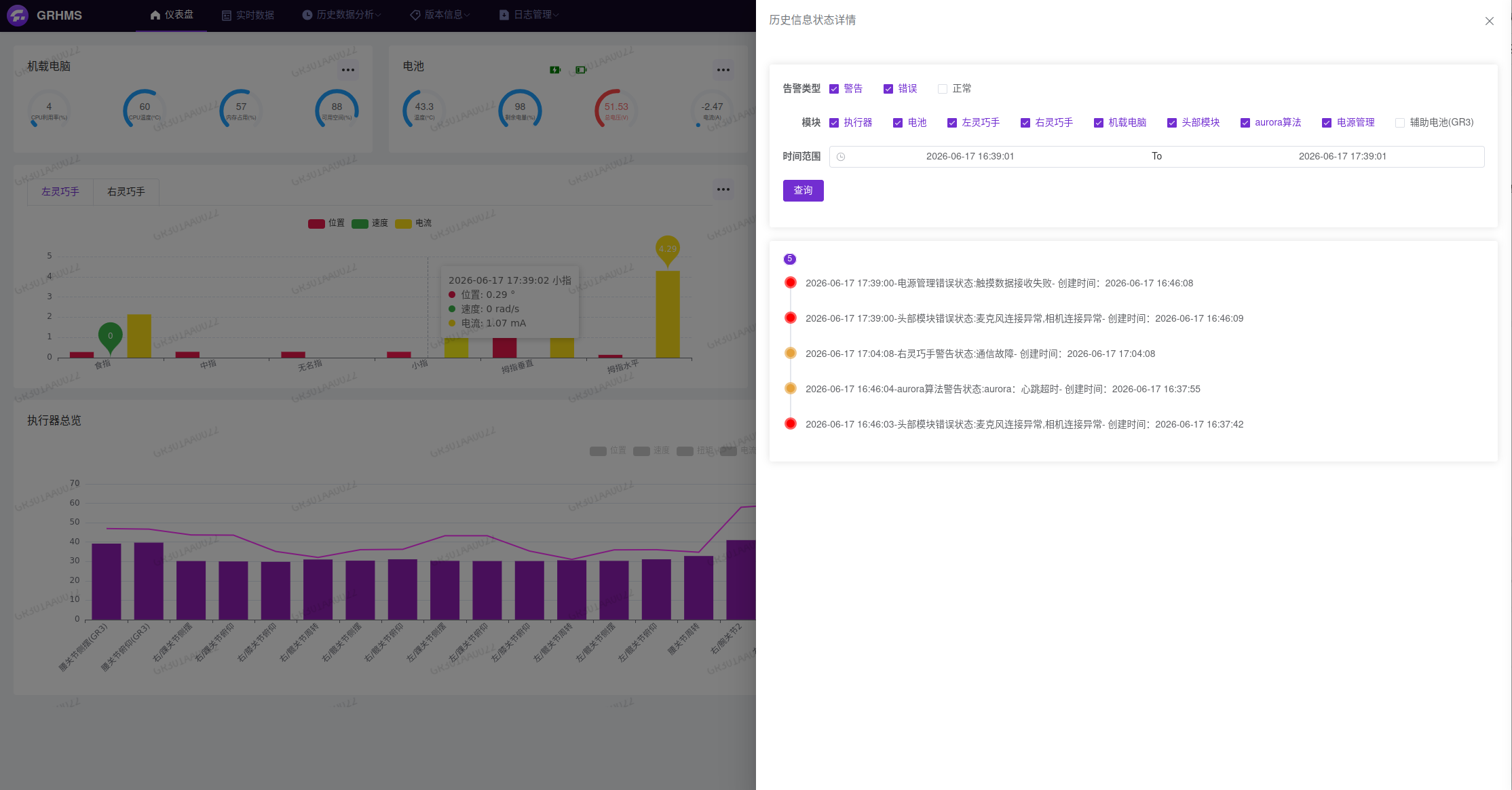
The robot system incorporates a heartbeat detection and anomaly reporting mechanism. The Alert Information panel displays real-time alerts based on detection results. Click the "Bell" button in the upper-right corner of this module to navigate to the Historical Data Analysis page, where you can filter by alert type, module, and time range, and locate the source of anomalies based on alert information.
2. Real-Time Data
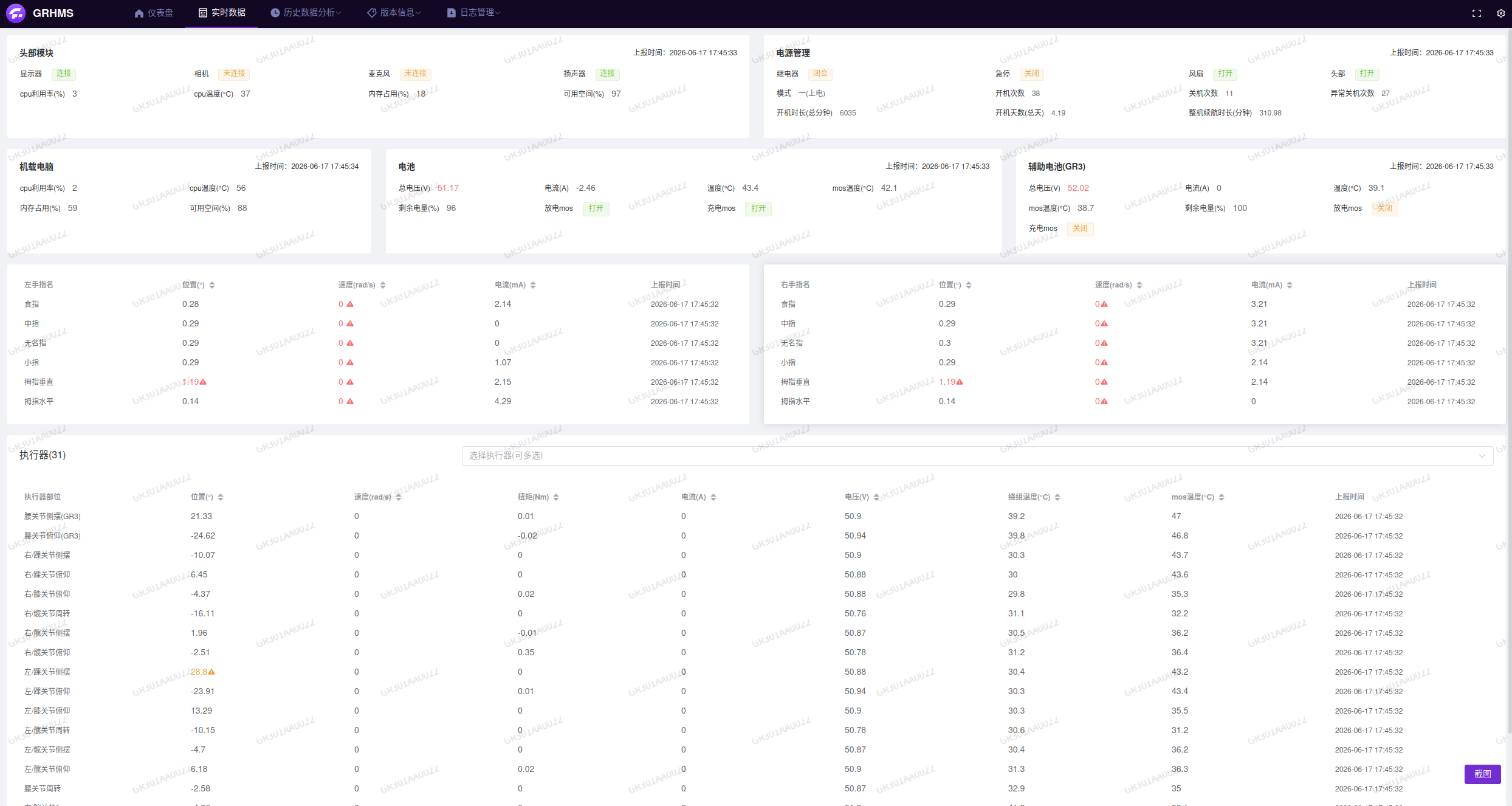
The Real-Time Data interface displays specific data for each module in real time, including the head module, power management, onboard computer, battery system, auxiliary battery, left dexterous hand, right dexterous hand, actuators, and more.
3. Historical Data Analysis
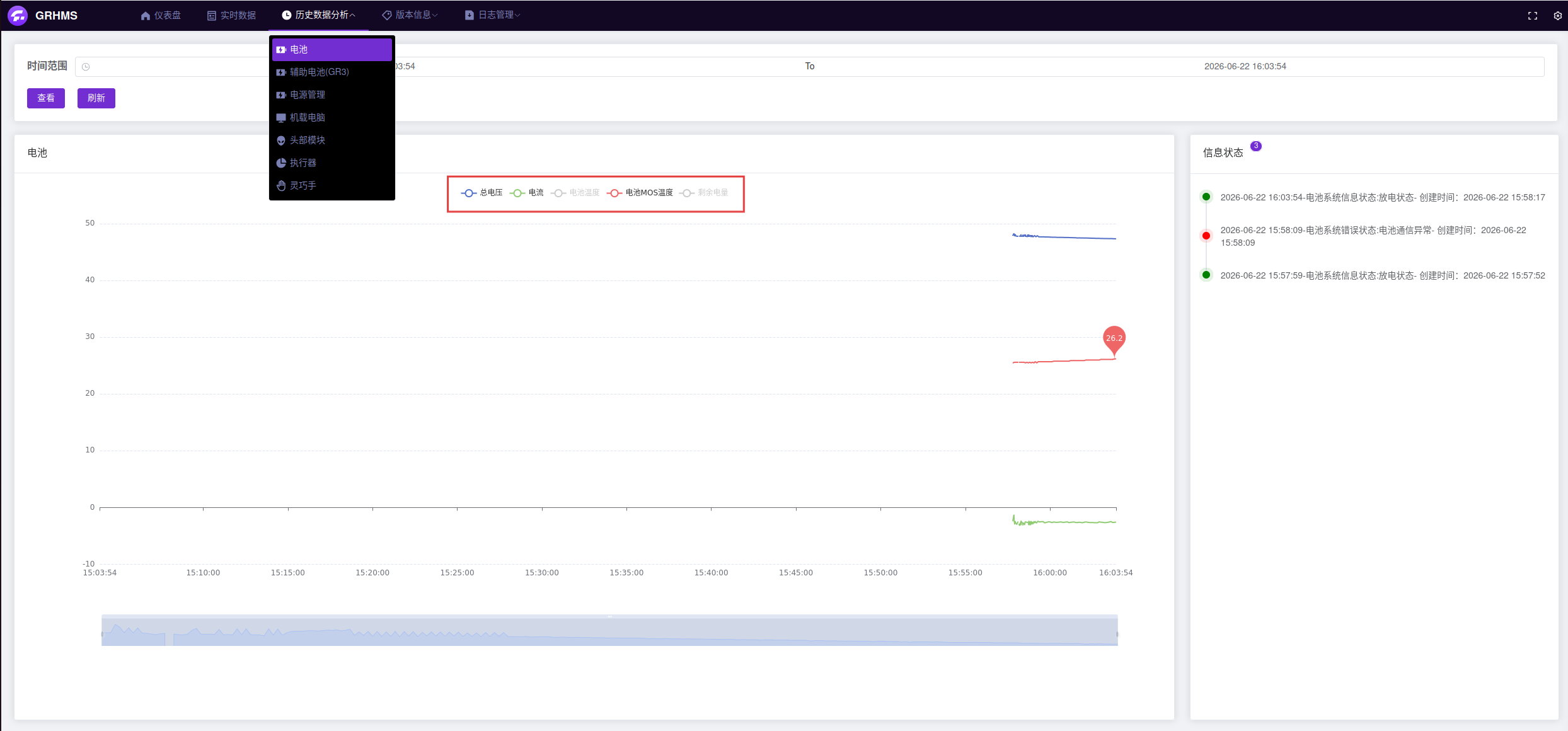
The Historical Data Analysis interface displays trend charts and information status for the selected module over the past hour by default. The image below shows the battery trend chart and information status. You can use the dropdown menu to select and display trend charts and status information for other modules. Whether a data trend curve is shown can be toggled individually — selected data items appear in color with their corresponding colored curve displayed below, while deselected items appear in gray.
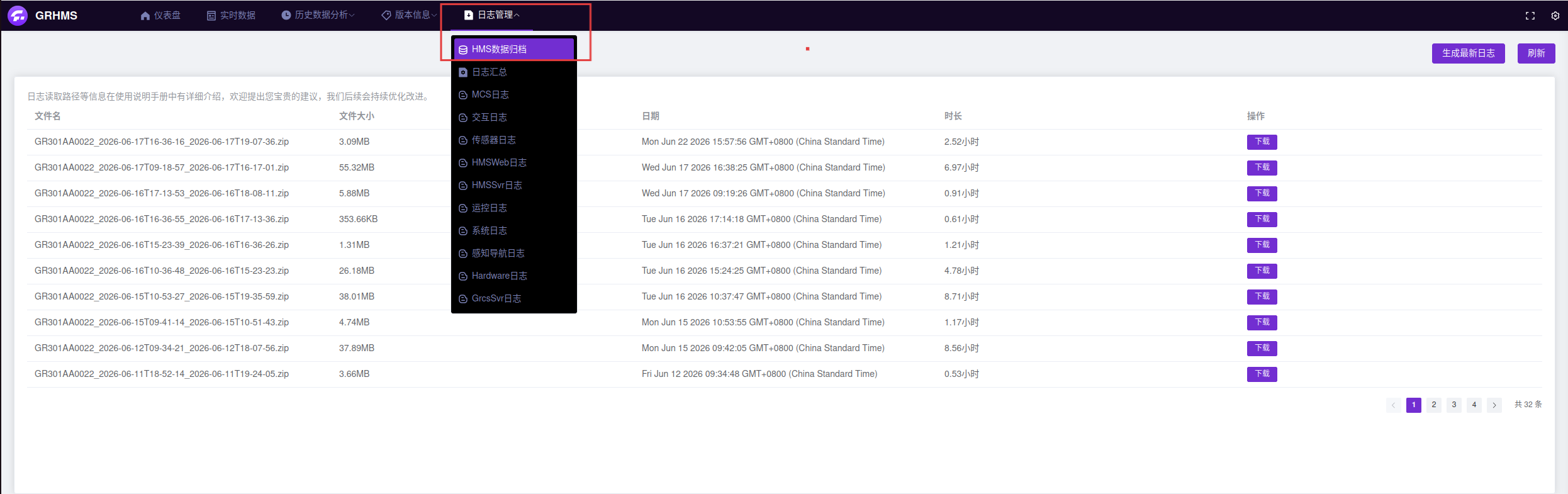
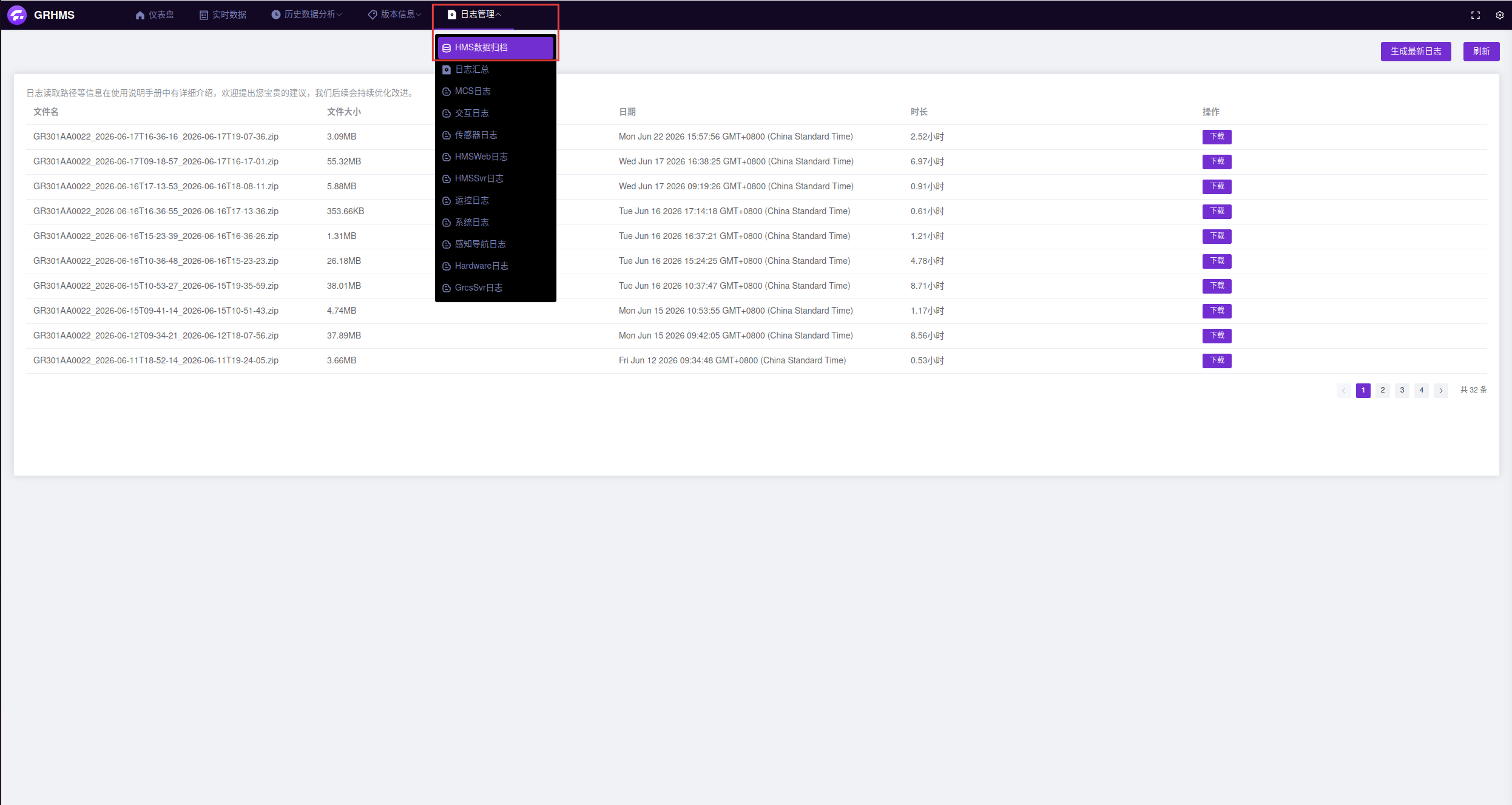
Note: Onboard log storage is retained for the most recent week. Logs older than one week are automatically archived. You can select "HMS Data Archiving" on the Log Management page to view archived log files.
4. Version Information
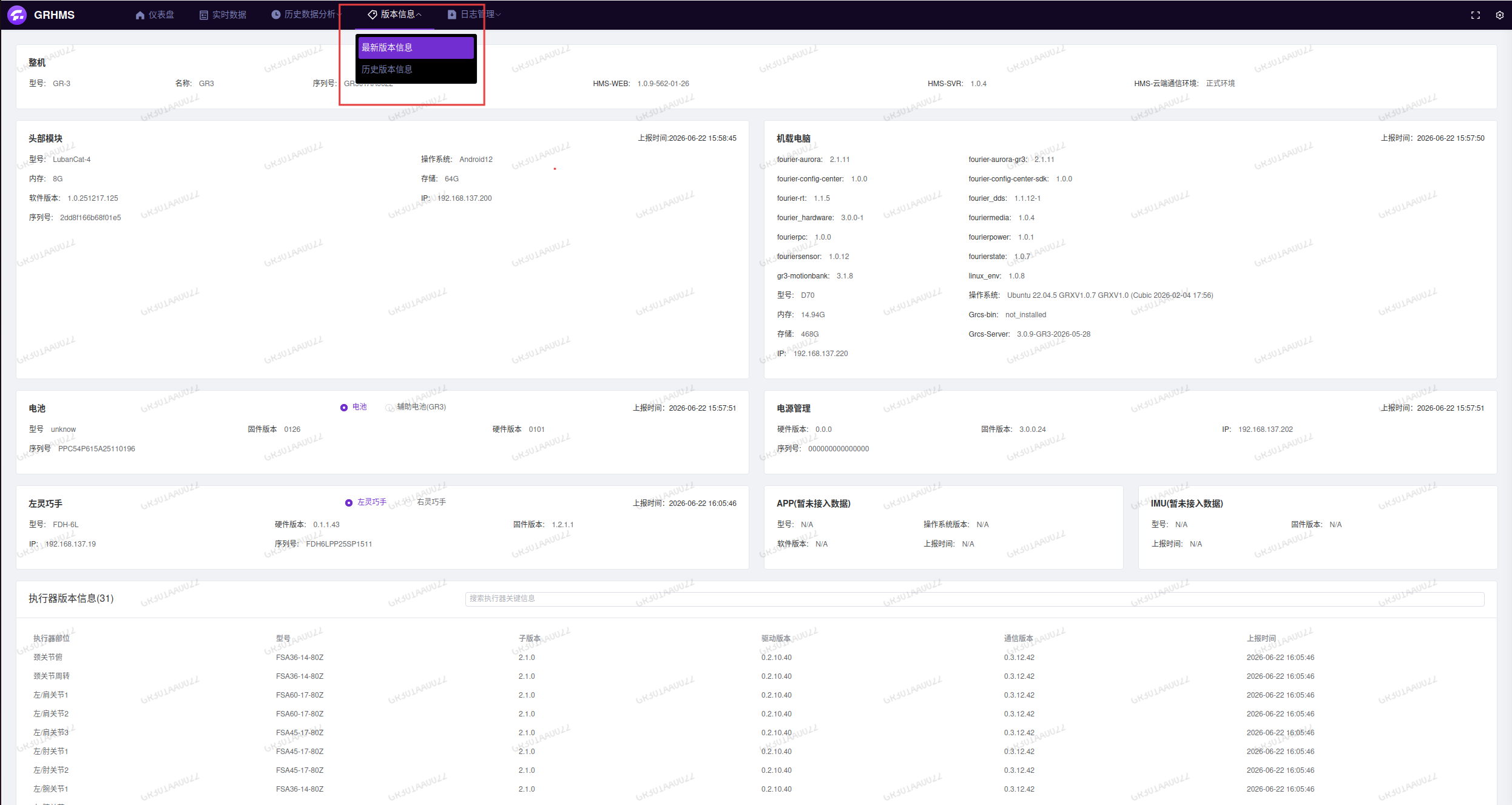
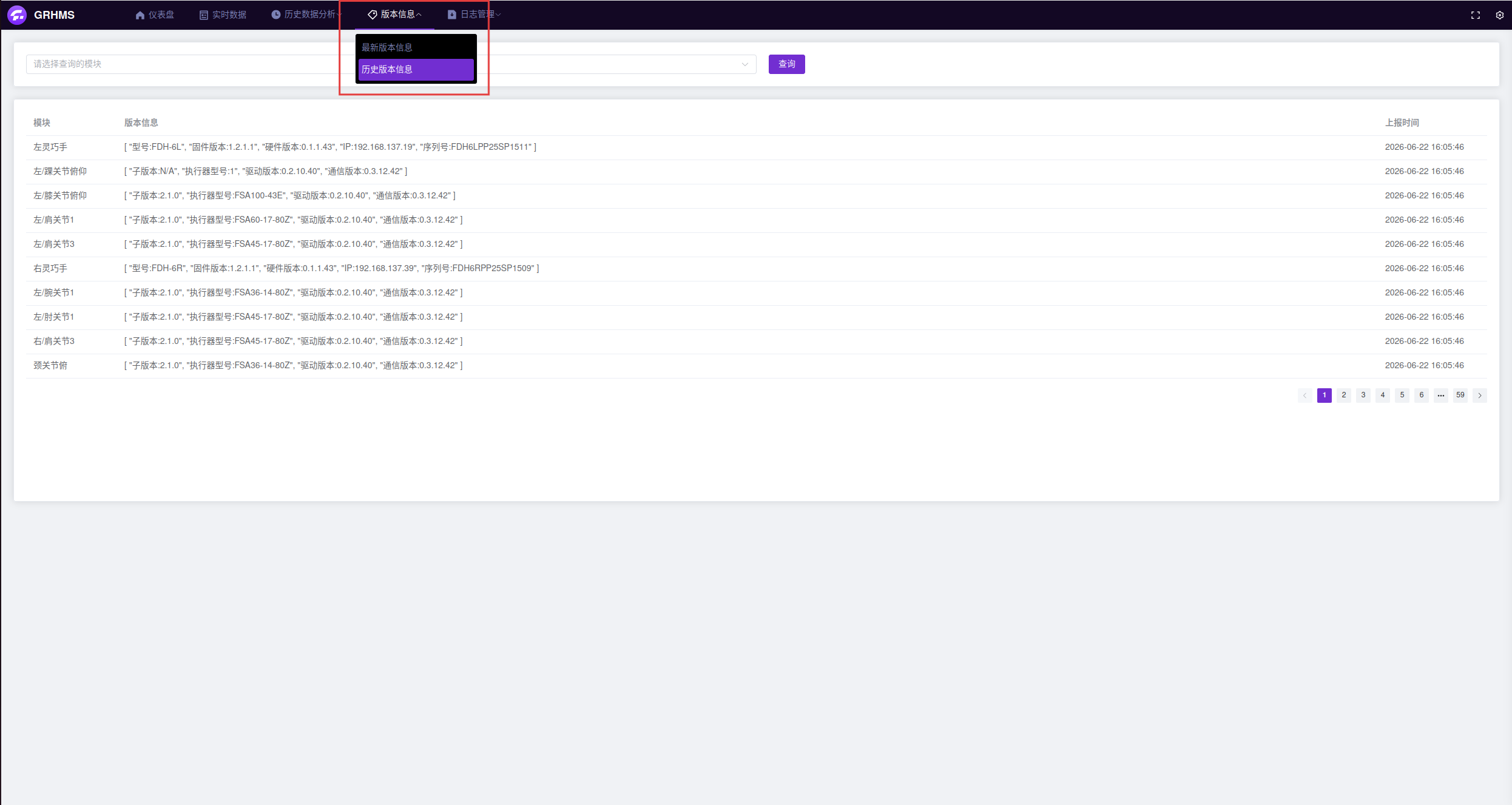
The Version Information interface allows you to choose between displaying "Latest Version Information" or "Historical Version Information". Selecting "Latest Version Information" displays the current version status of the robot at the time of connection. Selecting "Historical Version Information" displays the historical version information for each module.
5. Log Management
The Log Management interface supports selecting "HMS Data Archiving", "Log Collection", and other log modules for managing and working with logs.
5.1 HMS Data Archiving
Selecting "HMS Data Archiving" allows you to view log files that have been archived after expiration.
5.2 Log Collection
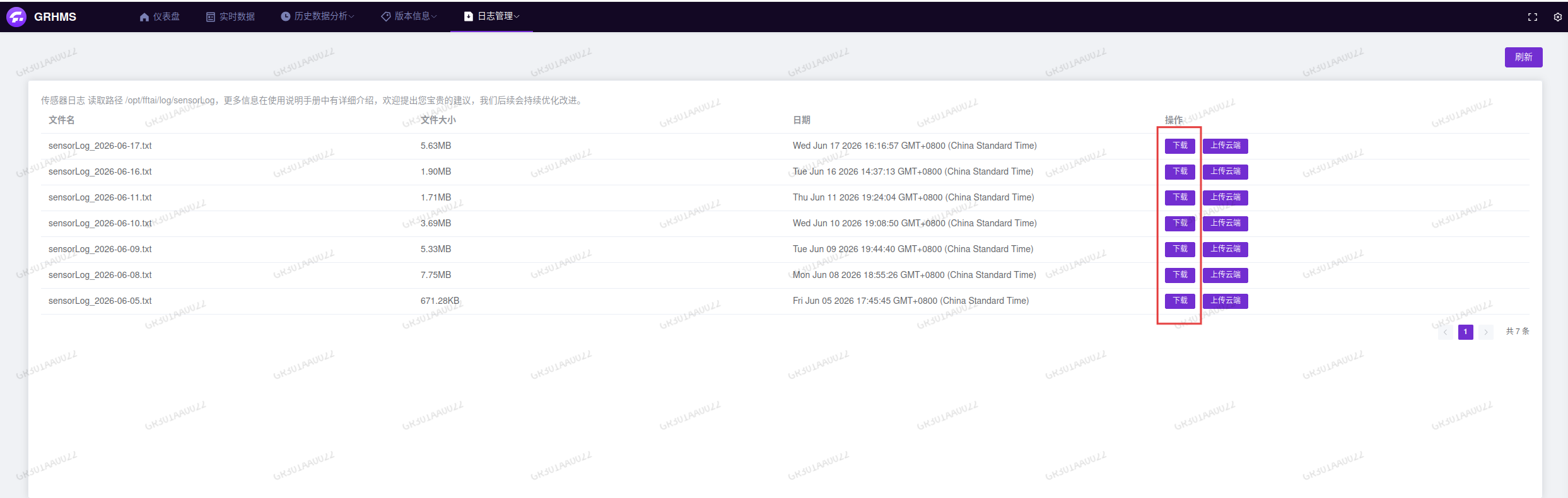
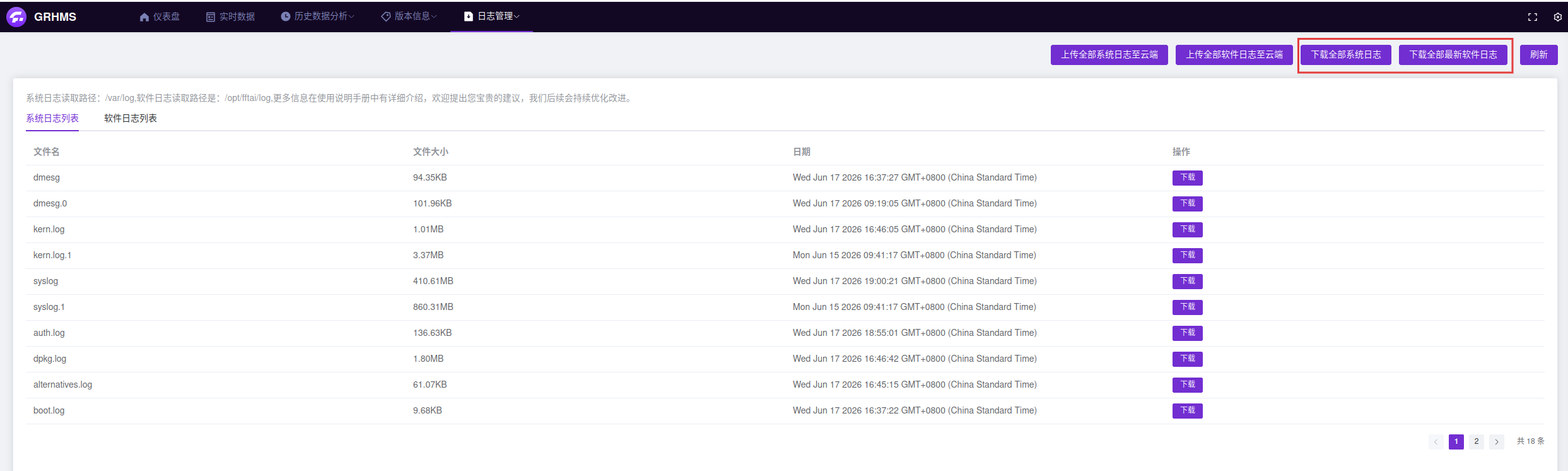
Selecting "Log Collection" allows you to collect and manage runtime logs from each robot module. Click the corresponding action button to download all software/system logs with a single click.
Note: The cloud upload service for software/system logs is currently unavailable. You can still view logs normally via the local download function. Thank you for your understanding and cooperation.
5.3 Individual Log Modules
Select each of the other log modules individually, then click the "Download" button to export local logs for further use.
Note:
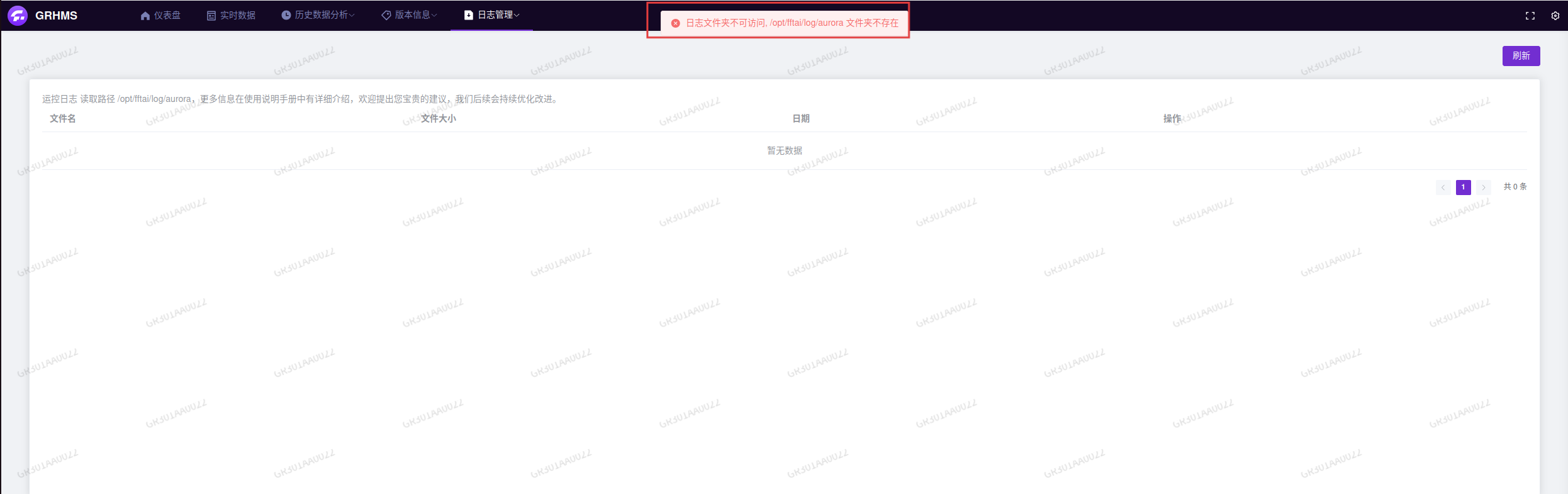
- Due to differences in robot models and versions, some log modules may show a "Folder currently inaccessible" prompt when selected, indicating that no valid log files currently exist.
- The cloud upload service is currently unavailable. You can still use the local download function to view logs normally. Thank you for your understanding and cooperation.